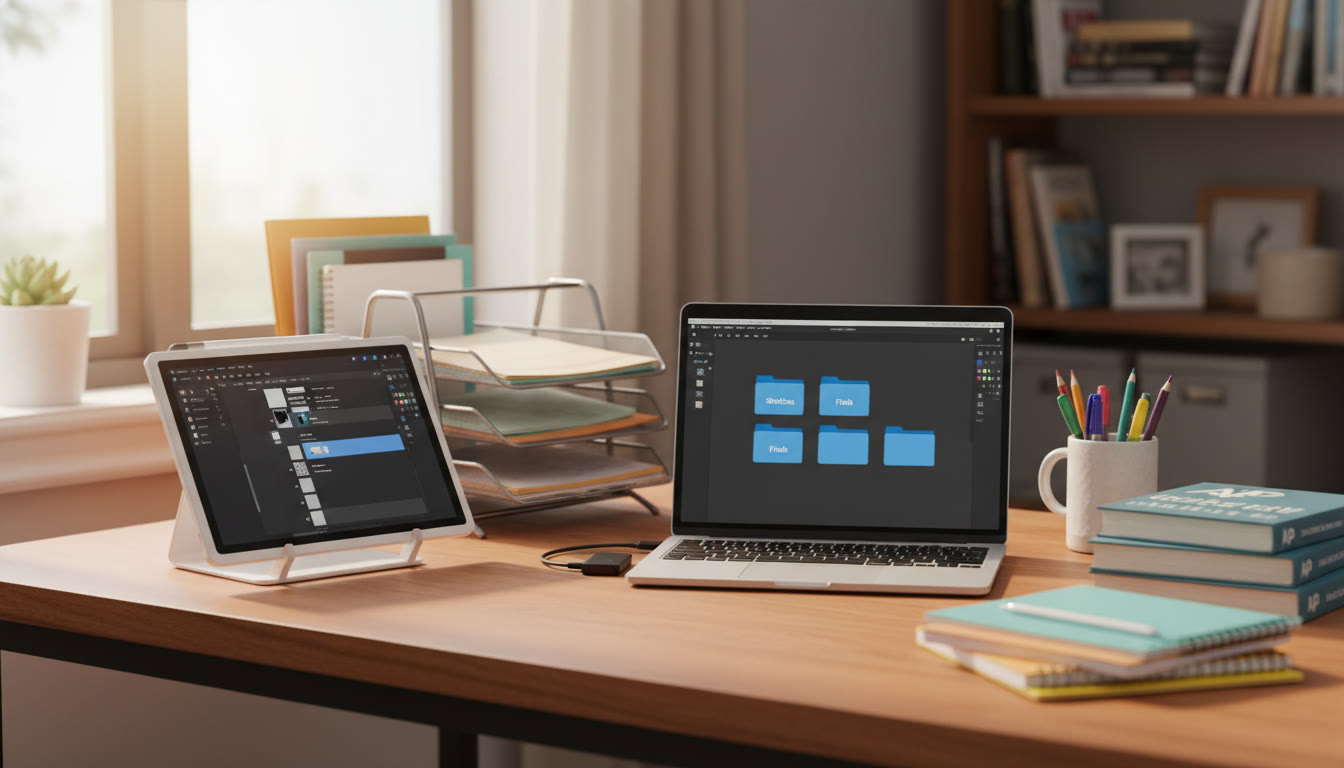

Why File Organization and Backups Matter for AP Students
If you’re preparing for AP Studio Art or any AP portfolio that requires digital work, the creative challenge is only half the battle. The other half is making sure your ideas, revisions, and finished pieces are cleanly organized and safely backed up. Lose a file or submit the wrong version, and months of effort can vanish in an instant. Good organization and a robust backup plan don’t just protect your art—they make you a faster, calmer, and more professional student.
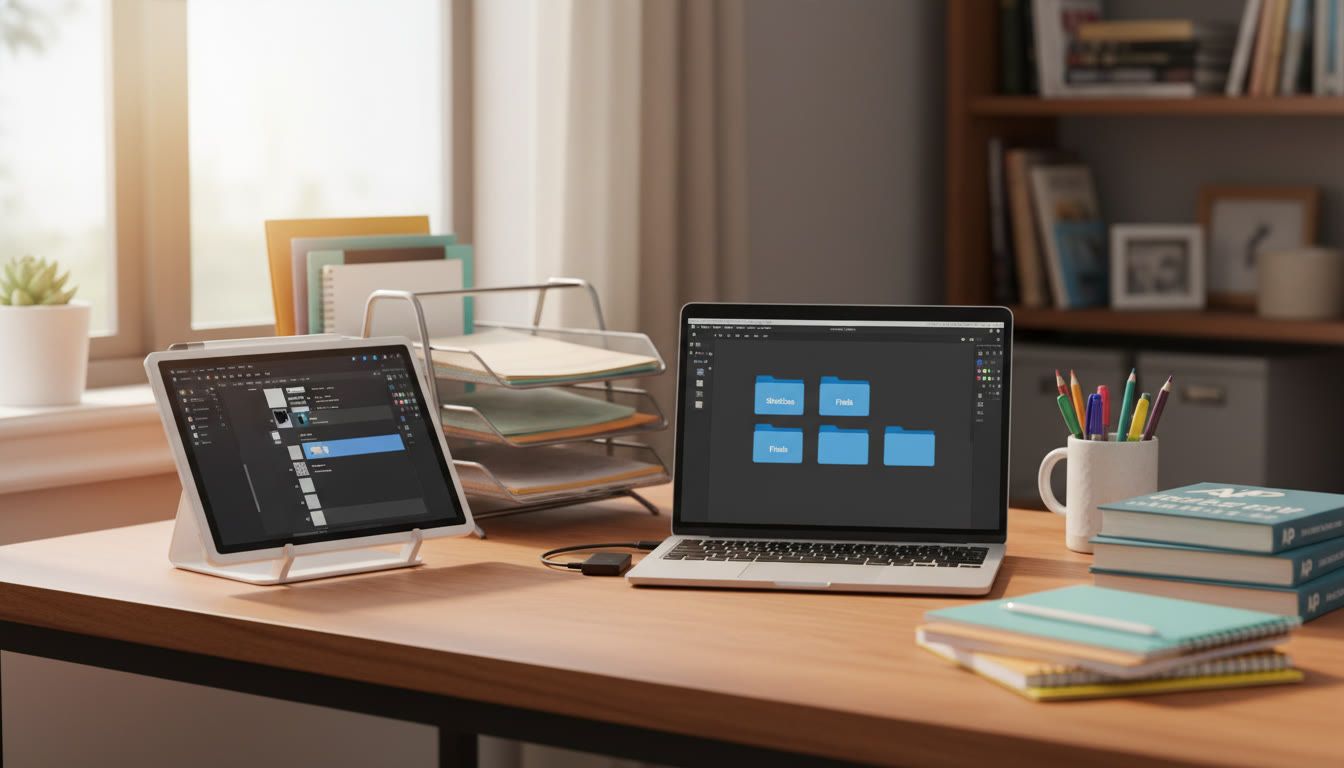
What You’ll Gain From a Solid Workflow
- Confidence that your files are safe and easy to find.
- Clear version history so you can show creative development in your AP portfolio.
- Faster critique and revision cycles—more time making art, less time searching.
- Professional habits that impress college admissions and portfolio reviewers.
Core Principles: Naming, Structure, and Versioning
Before diving into specific tools, anchor yourself with three principles that guide everything:
- Consistent Naming: Use descriptive, predictable filenames so you don’t have to open every file to know what’s inside.
- Logical Folder Structure: Organize by project and stage, not by random dates or devices.
- Version Control: Keep incremental copies or use an automated system so you can revert, compare, and demonstrate progress.
Practical Filename Conventions
Pick a convention and stick with it. Here are a few examples tailored for AP students working on digital art:
- ProjectName_Version_YYYYMMDD_FileType.ext — e.g., UrbanPortrait_V03_20251001_psd
- Class_Project_Step — e.g., APStudio_SelfPortrait_Final.jpg
- Keep important metadata short but consistent: project, version, date, and extension.
This makes searching, sorting, and sorting by date trivial—especially when you need to compile a portfolio for submission.
Folder Structure Templates for AP Portfolios
Folder structures should be predictable and mirror how you work. Below are two templates: one for single-project focus and one for multiple concurrent projects.
Single Project Template
- ProjectName/
- 00_References/
- 01_Sketches/
- 02_Comps/
- 03_WorkInProgress/
- 04_Final/
- 05_Exports/ (web, print, portfolio)
- Notes.txt
Multi-Project Template
- APPortfolio/
- Project_01_Name/
- Project_02_Name/
- Resources/ (brushes, textures, references)
- Exports/
- Admin/ (submission forms, rubric notes)
Versioning: Manual and Automated Strategies
Versioning is how you keep a timeline of creative decisions. For AP work, it’s especially useful for showing progress and responding to teacher feedback.
Manual Versioning
Save versions regularly with increasing numbers or dates. Example flow:
- Work_v01.psd — initial sketch
- Work_v02.psd — composition refined
- Work_v03_20251001.psd — after teacher feedback
Pros: Simple, transparent. Cons: Can clutter folders if you overdo it.
Automated Version Control
Tools like cloud-syncing services and some art apps offer automatic version history. Benefits include:
- Automatic snapshots so you don’t forget to save versions.
- Easy restore to previous states without managing filenames.
Use automated versioning alongside manual naming for the best of both worlds—human-readable names for quick identification and system snapshots as an insurance policy.
Backup Strategy: 3-2-1 Rule Adapted for Students
The industry-favored 3-2-1 rule is a great baseline: keep three copies of your data, on two different media types, with one copy offsite. Here’s how to adapt it to a student budget and workflow.
| Copy | Where | Why | Student-Friendly Option |
|---|---|---|---|
| Primary | Your computer or tablet | Active work and fastest access | Local drive or device storage |
| Secondary | External drive or another internal drive | Protection against device failure | External SSD/HDD connected weekly |
| Offsite | Cloud storage or a physically separate location | Protection against theft, fire, or local disaster | Cloud backup or a parent’s/home computer |
Choosing Backup Media
- External SSD: Fast and durable—great for active backups.
- External HDD: Cheaper per gigabyte—good for long-term storage.
- Cloud Storage: Accessible anywhere and often includes version history. Consider scheduling automatic syncs so you don’t forget.
Putting the System into Practice: A Weekly Routine
Routines make habits stick. Here’s a practical weekly checklist you can adapt to your schedule.
- Daily: Save frequently. Use your app’s native save plus a quick export (JPEG/PNG) for a snapshot.
- Every 2–3 Days: Commit a new version with a clear filename after major progress or critique.
- Weekly: Sync to cloud and update your external drive. Verify that files opened correctly.
- Monthly: Archive older projects into a separate folder labeled with the month/year (e.g., Archive_2025_09).
Sample Weekly Schedule
| Day | Action | Time/Duration |
|---|---|---|
| Monday | Save new versions after class | 5–10 minutes |
| Wednesday | Cloud sync and quick review | 10 minutes |
| Friday | Backup to external drive and tag files | 15–20 minutes |
| Sunday | Organize folders and plan next week | 20–30 minutes |
Exporting for Submission: Sizes, Formats, and Presentation
AP reviewers expect certain quality and clarity when you submit work. Preparing proper exports ensures your pieces look the way you intended.
Common Export Considerations
- Resolution: Export at 300 DPI for print-quality images; 72–150 DPI for web or screen sharing unless the rubric specifies otherwise.
- Color Space: Use sRGB for web and standard RGB workflows; check submission guidelines if they specify color spaces.
- File Formats: JPEG for flattened images, PNG for transparency, PSD or TIFF for layered high-quality masters (when allowed).
- Size & Compression: Strike a balance—use enough quality to retain detail but small enough to upload reliably.
Organizing Final Exports
Create an “Exports” folder with subfolders matching the submission categories—Finals, Thumbnails, and Presentation. Name files for the submission rubric and your own tracking, for example: APPortfolio_ProjectA_Final_20251015.jpg.
Collaboration, Feedback, and Reviewing Progress
Sharing work for critique is part of artistic growth. Organizing files so others can easily view specific versions makes feedback actionable.
Shareable Review Packages
- Export a low-res PDF or web gallery with notes for quick teacher review.
- Include a short text file or document listing what you want feedback on (composition, color, concept).
- Keep a “Critique” folder where you store screenshots or annotated images from feedback sessions.
Tools and Services That Fit Student Budgets
There’s no single perfect tool—choose what matches your workflow and budget. A combined approach often works best: a local drive for speed and cloud for safety.
- Free/Low-Cost Cloud Storage (student tiers often available)
- External SSD for fast local backups
- Native app auto-save and version history
- Simple sync apps that mirror folders you choose
Troubleshooting Common Problems
Problem: I accidentally overwrote my earlier file.
First, check your app’s version history if available. Next, check cloud version history or restore from your external backup. If none of those exist, consider file-recovery software as a last resort.
Problem: My files are scattered across devices.
Pick a canonical folder (e.g., APPortfolio on your laptop) and migrate everything into that structure. Use a one-time sync to consolidate, then maintain the rule: work from one device or always sync before editing.
Problem: Uploads fail because files are too large.
Export a medium-resolution copy for uploads and keep the master high-resolution in your backup drives. Compress using high-quality settings or split large portfolios into multiple uploads if allowed.
How This Workflow Helps Your AP Submission
AP reviewers look for evidence of sustained investigation, technical skill, and personal voice. Organized files and visible versioning directly support these goals:
- Version history demonstrates the development process and problem-solving.
- Neatly labeled finals and sketches make it easier to assemble a coherent portfolio presentation.
- Reliable backups mean you can meet deadlines without scrambling to recover lost files.
Real-World Example: From Sketch to Portfolio Piece
Imagine you’re creating a digital mixed-media piece for your AP portfolio. Here’s a condensed timeline that shows the workflow in action:
- Day 1–3: Collect references and create 8 thumbnails in ProjectName/01_Sketches. Save sketches as Project_v01-Date_sketch.psd.
- Day 4–7: Develop two comps in 02_Comps. Export rough JPEGs for critique and add notes in Notes.txt.
- Day 8: Teacher provides feedback. Save new version as Project_v02-Feedback.psd and move exported images into Critique/.
- Day 9–14: Finalize the piece. Export final high-res TIFF to 04_Final and a JPEG for submission to 05_Exports.
- Weekly: Sync to cloud and update the external drive. Archive older comps into Archive_2025_10.
Extra Tip: Presenting Development in Your AP Portfolio
AP reviewers appreciate seeing process. Choose 3–4 key stages per piece—thumbnail, composition, mid-stage, final—and present them with brief captions. Your organized folders will make gathering these stages painless.
How Personalized Tutoring Can Plug Into This Workflow
Working with someone who understands both the AP rubric and digital workflows can accelerate your progress. Personalized tutoring—like Sparkl’s one-on-one guidance—can help you build a study plan that pairs creative practice with technical habits: tailored filing systems, reviews of export settings, and feedback on how to document your process effectively. Tutors can also introduce AI-driven insights to spot repetitive mistakes or suggest time-saving workflows, all while keeping your portfolio authentic to your voice.
Checklist: Final Pre-Submission Steps
- Confirm all required images are exported and correctly labeled for the AP submission rubric.
- Verify resolution and color space for each exported file.
- Make at least two offsite backups (cloud and external drive).
- Prepare a short process statement and include version snapshots to demonstrate development.
- Do a final run-through on a different device to confirm files open and display correctly.
Closing Thoughts: Treat Your Files Like Your Portfolio
Your digital files are more than storage—they’re the story of your ideas, decisions, and growth. A tidy, defended workflow frees your mind to focus on the work itself. Start simple: pick a naming convention, create a folder template, and establish a predictable backup rhythm. As your workload grows, layer on automation and advanced tools.
Learning these habits now not only supports your AP submission but prepares you for college-level production and a creative career. And remember: if you ever feel overwhelmed, targeted help—like Sparkl’s personalized tutoring with tailored study plans and expert tutors—can streamline your process so you spend more time creating and less time worrying about lost files.
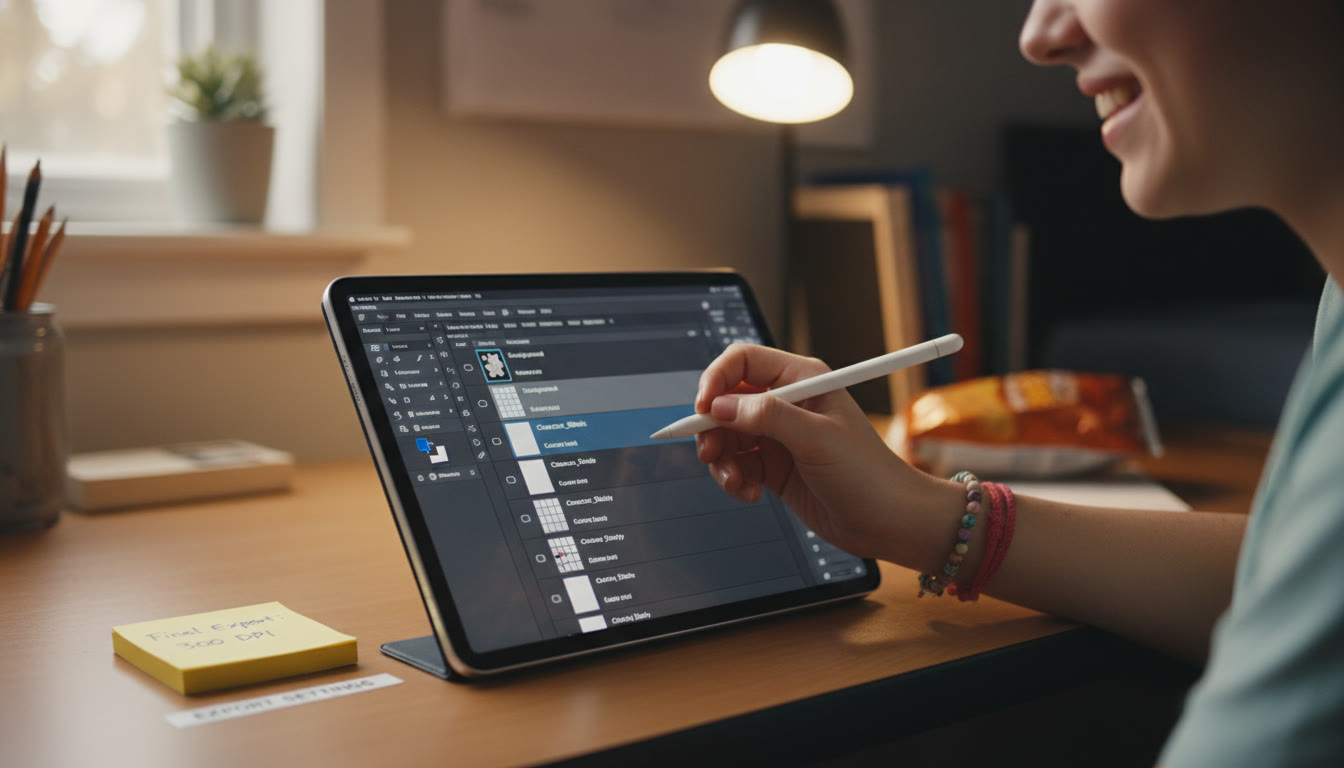
Ready to Make, Save, and Shine
Organizing and protecting your digital art should feel empowering, not burdensome. With a few simple rules, a reliable backup plan, and consistent routines, you’ll be able to focus on what matters most—making work that shows your growth and vision. Good luck on your AP journey, and trust that clear systems will carry you through the busiest crunches and most exciting breakthroughs.






















No Comments
Leave a comment Cancel