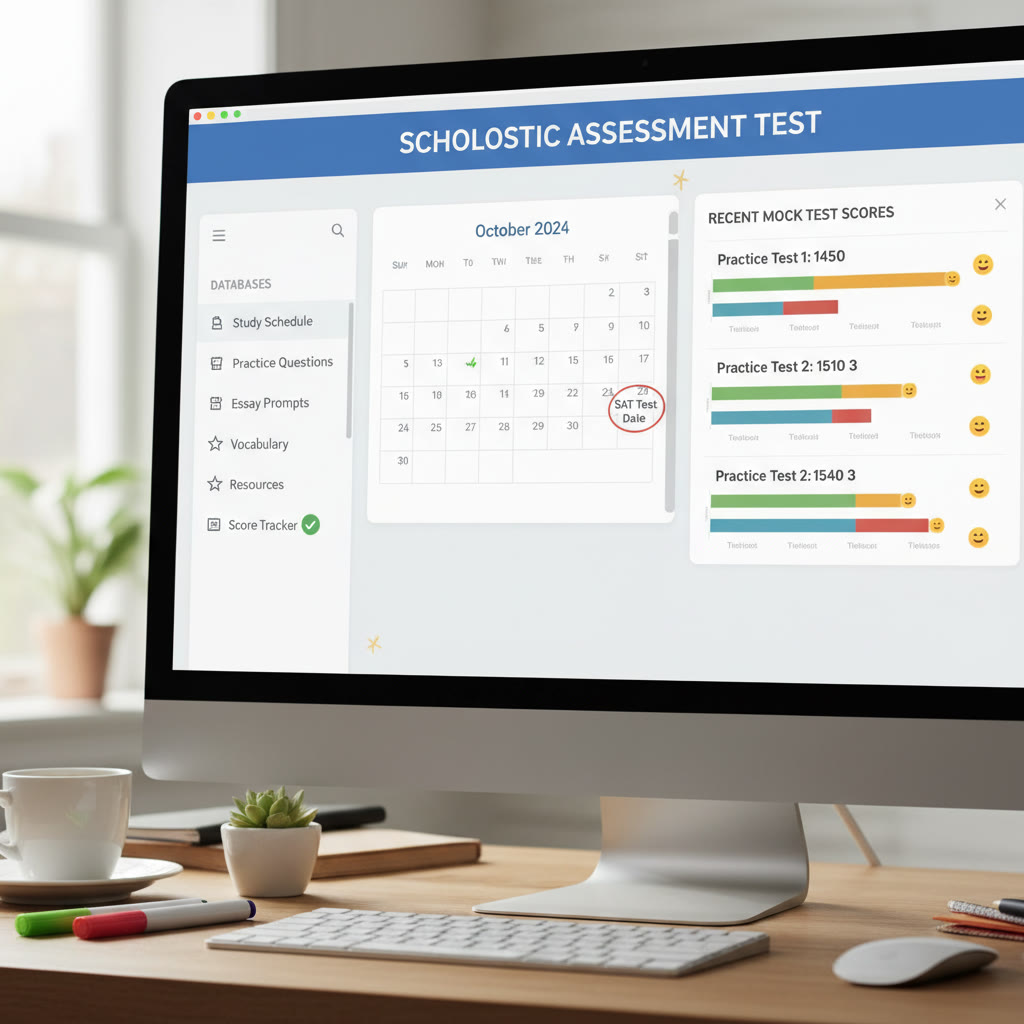

Why Notion is a Secret Weapon for SAT Prep
Imagine a single space where your practice tests, vocabulary lists, error logs, calendar, and motivational notes live together—beautifully organized and searchable. That’s Notion. For students preparing for the SAT, Notion isn’t just another app; it’s a canvas you shape to match your learning style. It helps you build habits, spot patterns, and keep momentum when the test date looms.
What makes Notion especially good for SAT prep?
- Flexibility: Notion adapts to whatever study system works for you—outline-based, database-driven, or a mix.
- Centralization: Keep practice tests, strategies, and resources in one place so nothing falls through the cracks.
- Visibility: Use tables, linked databases, and views to see progress at a glance—critical when you’re balancing school and SAT prep.
- Customizability: Make templates for error logs, timed practice, and flashcards to save time and stay consistent.
Getting Started: Building a SAT Workspace That Actually Works
Start simple. You don’t need a Pinterest-perfect dashboard on day one—just a space where you consistently record what you study and how you perform. Here’s a practical order for building your workspace:
- Create a top-level page called “SAT Prep”.
- Add sub-pages: “Study Schedule,” “Practice Tests,” “Question Bank / Error Log,” “Vocabulary,” and “Resources.”
- Set up a weekly dashboard to show today’s tasks, upcoming tests, and recent progress.
Tip: Embrace the database mindset
Notion’s databases are the engine behind most useful trackers. Treat practice tests, questions, and vocabulary as records with fields like date, time spent, score, topic, and notes. That structure lets you filter and create views—by topic (Math: Algebra), by problem type (Grid-in), or by performance (below 60%).
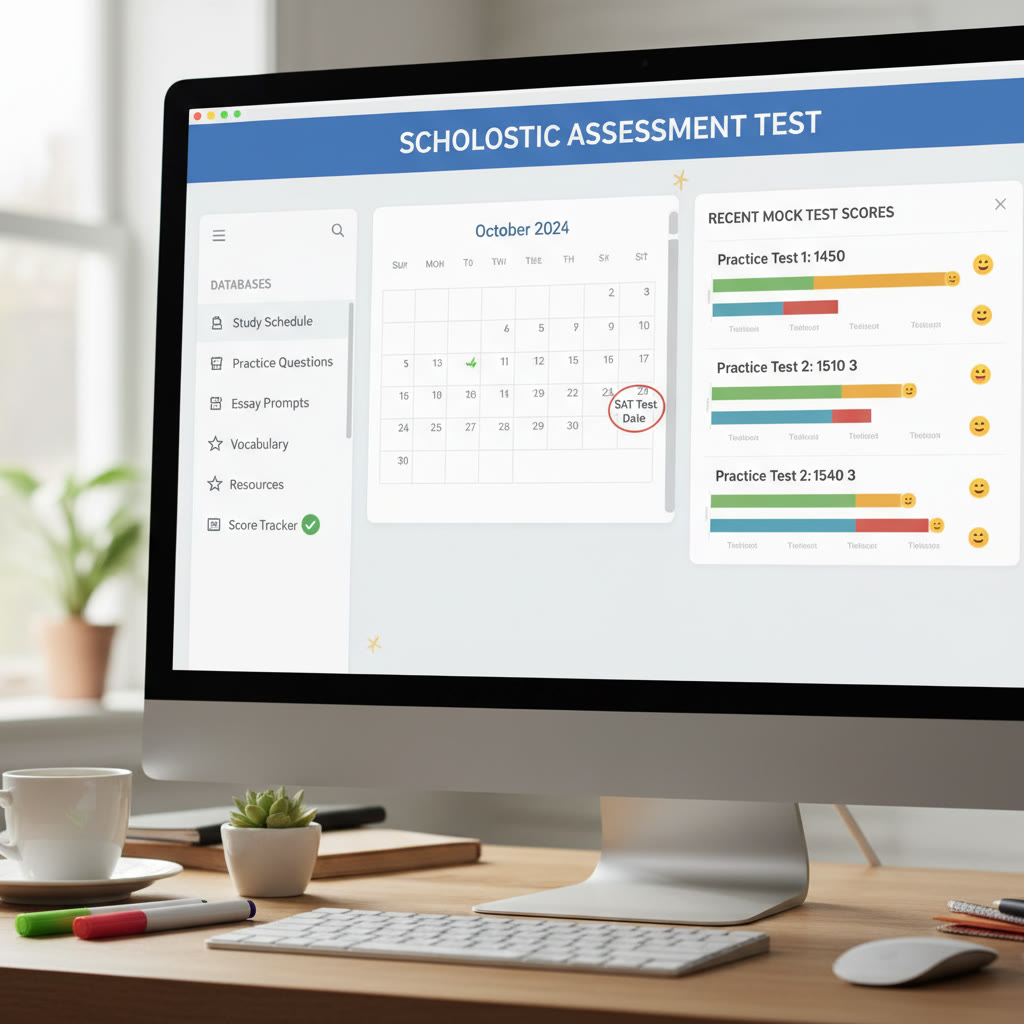
Essential Notion Pages and Templates for SAT Prep
Here’s a set of pages that cover all the bases. You can create them from scratch or duplicate them as templates.
1. Study Schedule (Master Calendar)
Your master calendar combines long-term milestones (test date, registration deadlines) and short-term sessions (2-hour practice on Saturday). Use a calendar view for time-blocking and a board view for weekly priorities.
2. Practice Tests Database
Each practice test entry should be a record with these useful properties:
- Date taken
- Test source (official SAT, practice book, sample section)
- Section scores (Reading, Writing & Language, Math No Calculator, Math Calculator)
- Total score and percentiles if you want to track relative performance
- Time allocation notes and environmental factors (distractions, test-time conditions)
- Top three takeaways
3. Question Bank / Error Log
Make every missed question a record. Over time, this database gives you a taxonomy of weak spots—questions per topic, common mistakes, or repeated time-management problems.
- Fields to include: date, question text (or short description), topic, error type (conceptual, careless, time, misread), correct answer, explanation, and links to resources.
- Tag questions by topic so you can pull a “Practice playlist” for a weak area.
4. Vocabulary and Grammar Notebook
Notion isn’t a flashcard app at heart, but it’s superb for building a living vocabulary list. Use a database where each row is a word, with fields for definition, part of speech, example sentence, frequency (how often you’ve practiced it), and a status (learned, review, new).
5. Resources & Strategy Notes
Store your test-taking strategies, grammar rules, and math formulas on a single page. Break strategies into reusable snippets—”How to approach sentence corrections” or “Guess-and-eliminate protocol for Reading passages.” That way, when you review mistakes, you can link back to the exact strategy you should apply.
Practical Example: Building a Weekly Routine in Notion
Below is an example weekly routine table. You can adapt the time blocks and focus areas depending on whether you’re 12 weeks out or 2 weeks out from test day.
| Day | Morning (30–60 min) | Afternoon (1–2 hrs) | Evening (30–60 min) |
|---|---|---|---|
| Monday | Vocabulary review (20 words) | Math practice: Algebra problem set (timed) | Read a challenging passage + summary notes |
| Tuesday | Grammar drills (10 questions) | Practice Test section: Writing & Language | Flashcards review |
| Wednesday | Vocabulary + quick quiz | Math: Geometry/problem solving sets | Error log review |
| Thursday | Reading speed practice | Full timed Reading section | Notes: strategy adjustment |
| Friday | Quick mixed set (20 min) | One-on-one tutoring session / review | Relaxed review of mistakes |
| Saturday | Full practice test | Test review & error logging | Rest and light reading |
| Sunday | Reflection & goal-setting | Targeted practice on weak areas | Plan next week’s schedule |
Using Views to Stay Focused
Create different database views: “Today” (filtered to today’s calendar), “This Week” (current due dates), and “Weak Topics” (questions flagged as recurring mistakes). Views are your mental shortcuts; use them to avoid decision fatigue.
Tracking Progress: A Data-Driven Yet Human Approach
One of Notion’s strengths is turning subjective feelings into objective data. When you see a chart of your practice test scores or a heatmap of error types, you can make smarter decisions about what to practice next.
What to track
- Practice test scores by section and date.
- Average time per question type.
- Error categories and frequency.
- Hours spent studying per week.
Sample Progress Table
| Date | Reading (score) | Writing (score) | Math (score) | Total | Top takeaway |
|---|---|---|---|---|---|
| 2025-02-01 | 32 | 28 | 45 | 800 | Reading: slow on inference questions |
| 2025-03-01 | 34 | 30 | 50 | 840 | Improved pacing in Math |
| 2025-04-01 | 36 | 33 | 52 | 870 | Grammar accuracy up, work on word problems |
Over a few months this becomes a compelling story of progress. Seeing incremental gains encourages consistency—one of the most underrated aspects of success on the SAT.
Notion Workflows: From Mistake to Mastery
Here’s a workflow that converts every wrong answer into targeted practice:
- Log the question in your Error Log with tags for topic and mistake type.
- Write a short note explaining why the correct answer works (teach it to future-you).
- Create a follow-up task: schedule a practice mini-session 3–5 days later and tag the entry “review”.
- If the same mistake shows up twice, escalate: add it to a “High Priority” view and alert your tutor or study partner.
Why this works
Spacing repetition and active recall are evidence-based strategies. The Error Log enforces both: you review mistakes after a gap and actively reconstruct the reasoning rather than passively re-reading.
Notion & Tutoring: Making 1-on-1 Sessions More Productive
If you work with a tutor, bring Notion into the conversation. A shared page or exported notes give your tutor context and show what’s been logged and practiced. When you use Sparkl’s personalized tutoring, for example, your Notion workspace can become the single source of truth: your tailored study plans, session notes, and AI-driven insights complement the human guidance of an expert tutor. The two together—organized data in Notion and focused 1-on-1 coaching—speed up improvement.
How to structure tutoring notes
- One page per session with objectives, problems covered, and action items.
- Link to specific Error Log entries so the tutor can see the problem history.
- Track homework assigned and completion status with checkboxes.
Examples & Mini-Templates You Can Copy
Here are short templates you can recreate in Notion quickly.
Practice Test Entry (fields)
- Title: SAT Practice – Date
- Properties: Source, Reading score, Writing score, Math score, Total, Duration, Environment, Notes
- Body: paste a quick reflection—what surprised you? what felt easier than before?
Error Log Entry (fields)
- Title: Topic – Short description of question
- Properties: Topic, Subtopic, Correct answer, Mistake type, Date, Difficulty, Status (to review/learned)
- Body: solution breakdown and links to rules or videos (if you saved them in Resources)
Mobile and Offline Tips: Use Notion on the Go
Notion’s mobile app is great for short bursts of practice—vocabulary on the bus, a timed five-question mix between classes, or logging small notes after school. A couple of practical tips:
- Pre-load your study session the night before to avoid relying on spotty Wi-Fi.
- Use smaller databases on mobile to keep the app performant—link to a master database rather than duplicating huge tables.
- Keep a quick “Today” page with three must-do items so you never open Notion and feel overwhelmed by everything on the main page.

Real-World Example: How a Student Turned Chaos into Confidence
Meet Maya (name changed). Two months before her test she was inconsistent: one week she studied four hours a day, the next week she disappeared under schoolwork. Scores bounced wildly on practice tests. We built her a Notion workspace with a simple weekly dashboard, an Error Log, and a practice-test database.
Within six weeks, the dashboards made patterns visible. Time-blocking in the calendar showed she studied more consistently on Sundays and Thursdays. The Error Log highlighted that she repeatedly missed function notation and parallel lines problems in Math. Maya scheduled targeted practice sessions for those topics and logged each attempt.
The results? Her math section jumped from 48 to 54 points across three full-length tests, and her total score rose by nearly 70 points. More importantly, she felt less anxious because she could look at the Notion dashboard and see concrete progress.
Common Pitfalls and How to Avoid Them
- Overbuilding: It’s tempting to design an elaborate system. Start with the essentials: one calendar, one practice test database, one error log.
- Too many templates: Keep a few high-impact templates instead of dozens of pieces that sit unused.
- Neglecting review: Logging is only valuable if you schedule reviews. Use Notion reminders or integrate review dates into your calendar views.
- Data without action: If you collect mistakes but never turn them into practice, the database becomes clutter. Make a rule: every error logged must have a follow-up task.
Advanced Tricks: Automations and Smart Uses
When you’re confident with the basics, try these advanced moves:
- Use linked databases to create compact views for “Today’s tasks” that pull data from multiple sources.
- Create a weekly summary template that automatically pulls the week’s top takeaways using rollups and relations.
- Combine Notion with screen recordings for step-by-step solutions embedded inside an error log entry (paste a short transcript or explanation under the video).
- If you have AI-driven tutoring insights from services like Sparkl, summarize those insights in Notion. For instance, paste the tutor’s recommended focus areas into your weekly plan and set tasks accordingly.
Putting It All Together: A 30-Day Plan Using Notion
This short plan focuses on routine, reflection, and targeted practice. Use your Notion workspace to track each step.
- Week 1: Baseline—Take a full practice test, set up dashboards, and create databases.
- Week 2: Target Weaknesses—Use the Error Log to make 3 focused practice sessions per week.
- Week 3: Pacing & Timing—Do timed sections and analyze time-per-question in Notion.
- Week 4: Consolidate—Run a mock test each weekend, review the Error Log, and make a final checklist.
How to measure success at 30 days
Beyond raw score improvements, success shows up as: a consistent study habit, a shorter list of recurring mistakes, and the ability to walk into a practice test confident you have a plan. Use Notion to compare beginning and end-of-month entries, and celebrate the habits—not just the numbers.
Final Checklist: Notion Essentials Before Test Day
- Practice Tests database populated with at least three recent full-length tests.
- Error Log with review tasks scheduled and completed.
- Weekly calendar with time blocks for final review and rest.
- One-page cheat sheet: formulas, grammar rules, and pacing reminders.
- Notes from tutoring sessions (if you worked with a tutor) consolidated and acted upon.
One gentle reminder
Tools like Notion are powerful, but they’re a means to an end. The real engine of improvement is consistent, focused practice. Treat Notion as your coach’s clipboard—organized, honest, and kind. If you pair that with guided support like Sparkl’s personalized tutoring—1-on-1 guidance, tailored study plans, expert tutors, and AI-driven insights—you get a potent mix of data and human judgment that shortens the path to your target score.
Wrap-Up: Make Notion Yours
Notion gives you structure without prescription. Start with simple systems, iterate as you learn, and use data to inform what to practice next. Whether you’re juggling school, activities, and college prep, a clear Notion workspace turns scattered work into a coherent, motivating plan. Build small, measure often, and let every logged mistake become a stepping stone to mastery.
Good luck—you’ve got this. And when the going gets tough, open your Notion page, check one small task, and do it. Momentum is contagious.




























No Comments
Leave a comment Cancel