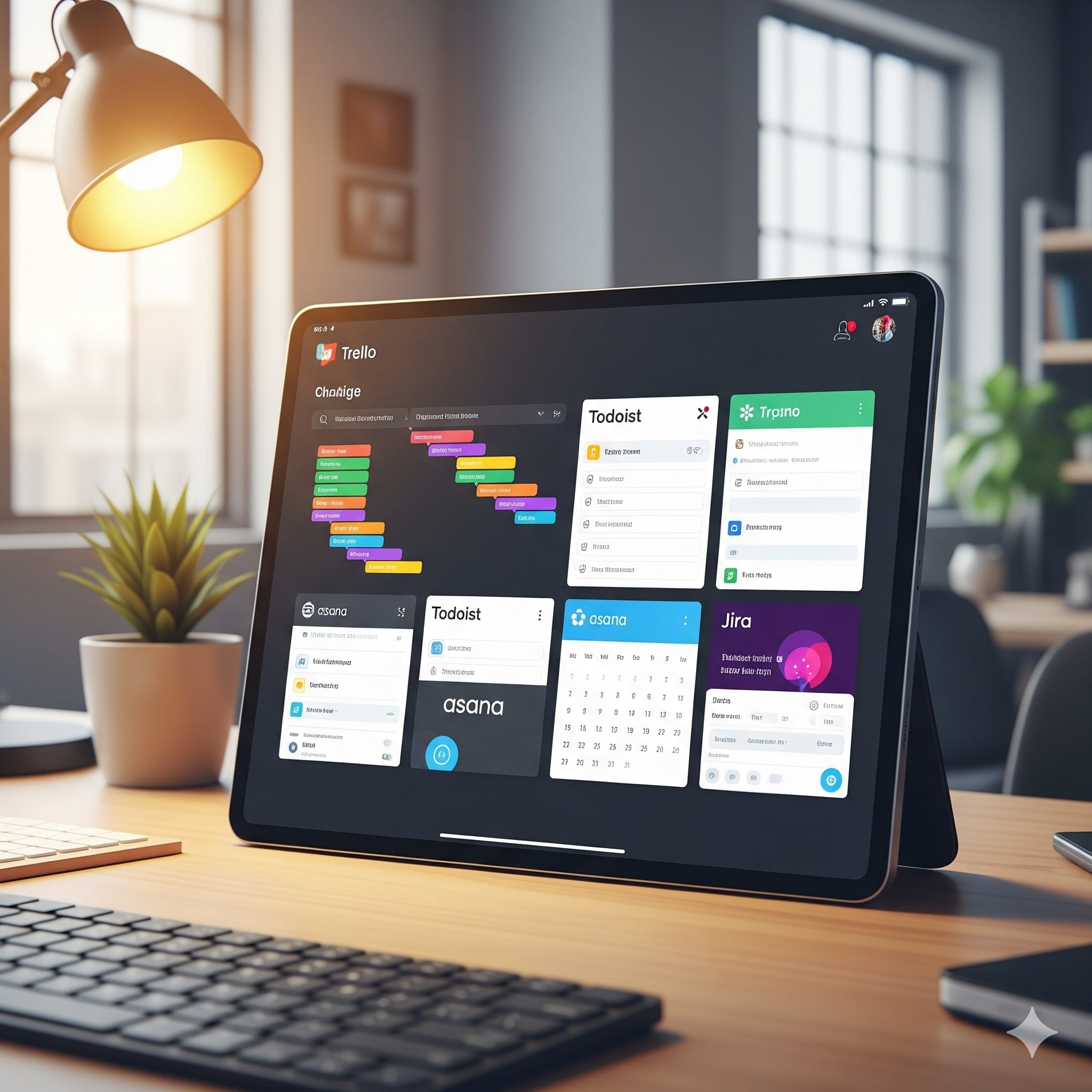

Why Use Task Management Apps for Digital SAT Prep?
If you’re prepping for the Digital SAT, you’re not just studying content—you’re building a system. Task management apps (think digital planners with notifications, checklists, and progress views) turn scattered intention into steady progress. They help you prioritize what matters most, break down overwhelming goals into doable chunks, and protect the little pockets of time that add up to real improvement.
Unlike sticky notes or messy Google Docs, good task management apps let you see your whole plan at a glance, capture fleeting ideas, and adjust when life gets busy. For a test that’s adaptive, timed, and digital, the ability to reflect and iterate on your study routine is huge. This blog shows you how to organize your prep, step-by-step—using real templates, sample weeks, and concrete routines you can copy and adapt.
Pick the Right App — What to Look For
Not every app fits every student. When choosing an app for SAT prep, consider these features:
- Task lists and subtasks — so you can break a practice test down into sections and review tasks.
- Calendar integration — for scheduling mock tests and tutoring sessions without double-booking.
- Reminders and notifications — to keep momentum on busy days.
- Tags and labels — to filter by topic (Reading, Writing & Language, Math, Essay practice if you do it), difficulty, or priority.
- Progress tracking — streaks, completed tasks, or custom fields so you can see improvement over time.
- Collaborative features — if you’ll be working with a tutor, teacher, or study buddy.
Apps that allow templated tasks and recurring schedules will save you time. If you plan to pair 1-on-1 tutoring with independent practice, choose an app that makes sharing plans or exporting your calendar easy—many tutors appreciate a clear, shareable schedule.
Set a Clear Goal: What Does Success Look Like?
Before you create tasks, set a measurable goal. Vague goals like “study more” don’t cut it. Instead, make your target specific:
- Target score: e.g., raise Math from 650 to 720 by October test date.
- Timing goal: complete 4 full-length practice tests before test day.
- Skill goal: reduce careless errors in Reading to fewer than 3 per section.
Write this goal as a pinned item in your task app. Keep it short, realistic, and tied to a date so you can plan backwards.
Create a Prep Framework: The 3-Layer Model
Here’s a simple framework to structure tasks inside your app. Use three layers: Long-term, Weekly, and Daily.
1. Long-term (Master Plan)
These are your milestones from now until test day: full practice tests, target score checkpoints, and scheduled tutoring sessions. Add due dates and calendar reminders.
2. Weekly (Sprints)
Each week has a theme: Content review, timed sections, problem sets, or deep review. Create a recurring weekly template in your app with slots for 3–5 focused sessions plus one full-length timed test every 1–2 weeks.
3. Daily (Tiny Work, Big Gains)
Daily tasks are small but specific: “30 minutes: Khan Academy targeted practice — Algebra II mistakes” or “30-minute vocab flashcards + 15-minute error log review.” Make tasks time-boxed to prevent open-ended study.
Example Study Template — Set Up in Your App
Below is a sample template you can recreate. Add it as a project or template in your app and duplicate each week.
| Task | Frequency | Estimated Time | Purpose |
|---|---|---|---|
| Full-length Digital Practice Test (Bluebook) | Every 2 weeks | 3 hours | Assess timing, endurance, and adaptive performance |
| Section Timed Practice (Math/Reading) | 2–3 times/week | 45–60 minutes | Build speed and question-type familiarity |
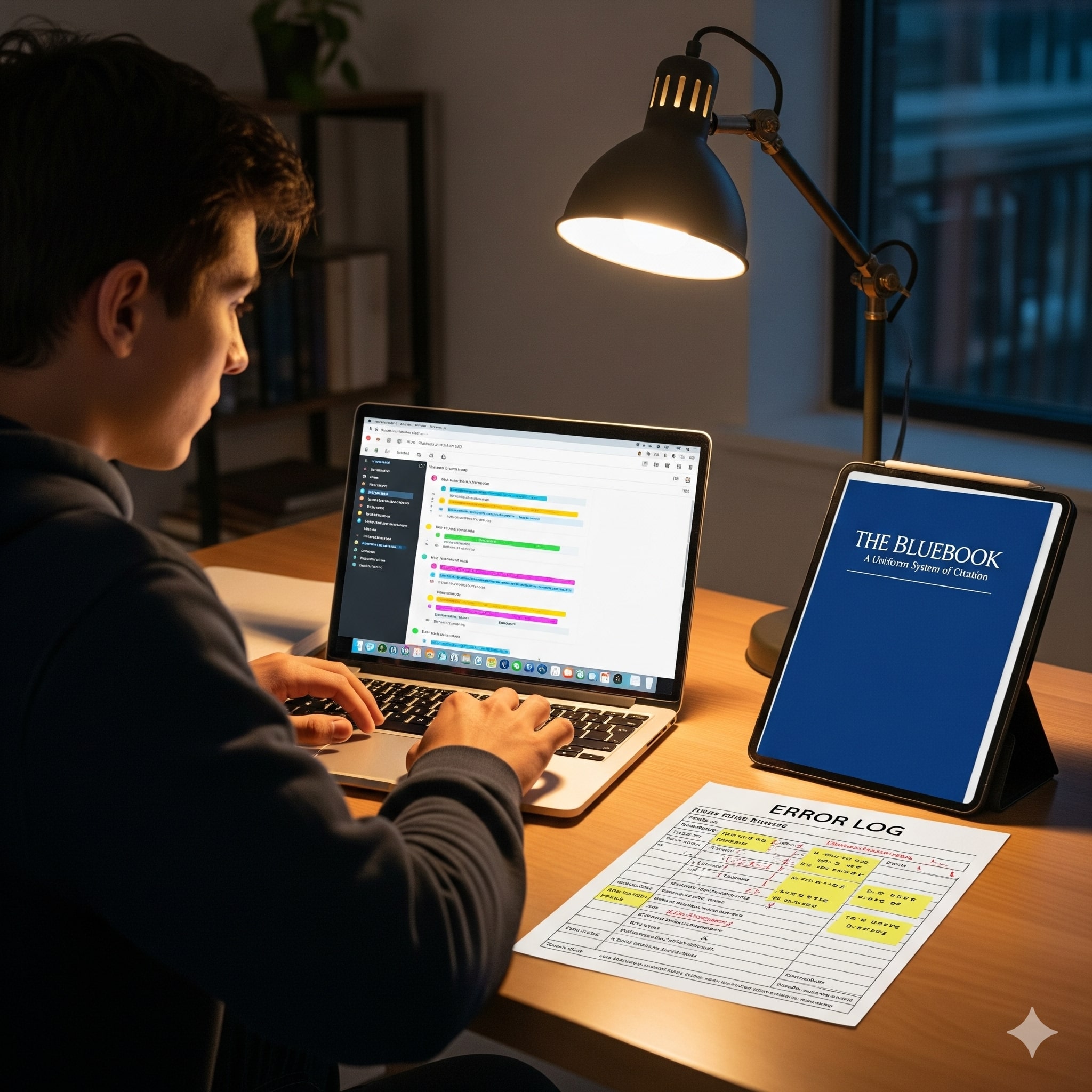
| Error Log Review | 3 times/week | 20–30 minutes | Turn mistakes into targeted lessons |
| Tutor Session / Review | 1/week | 60 minutes | Clarify concepts and receive personalized guidance |
| Vocabulary & Grammar Warm-up | Daily | 10–15 minutes | Keep language skills sharp |
How to Break a Practice Test into Tasks
Practice tests are gold—but to extract value, schedule specific follow-up tasks in your app. After every practice test create three tasks:
- Score Analysis: Input section scores and note score gaps.
- Error Categorization: Tag mistakes as “concept,” “careless,” or “timing.”
- Targeted Drills: Add tasks for the exact question types you missed (e.g., “8 trig problem sets”).
When you finish the follow-ups, mark the practice test as “reviewed” rather than just “completed.” That small habit ensures practice turns into learning.
Designing an Error Log Within Your App
An error log is your diagnostic tool. Use tags and custom fields to make each entry searchable. Minimum fields to capture:
- Date and test name
- Question number and section
- Mistake type (concept, careless, wording/time pressure)
- Correct approach or reference page
- Follow-up task assigned (drill, video review, tutor question)
Make a recurring weekly task: “Review all ‘careless’ errors this week.” The goal is to convert repeated errors into eliminated errors.
Sample Weekly Schedule (What to Put on Your Calendar)
Here’s a balanced week for someone with 8–10 hours of study time per week. Put these as events in your task manager that sync to your calendar.
| Day | Main Focus | Time Block | Why |
|---|---|---|---|
| Monday | Timed Math Section + Error Log | 60–90 minutes | Build pacing and identify weak topics |
| Tuesday | Vocabulary & Writing practice | 30–45 minutes | Strengthen grammar and context clues |
| Wednesday | Targeted Concept Drills | 60 minutes | Focus on problem areas (e.g., functions or passage inference) |
| Thursday | Timed Reading Section | 45–60 minutes | Practice speed and annotation strategy |
| Friday | Tutor Session or Review | 60 minutes | Clarify mistakes and adjust the plan |
| Saturday | Full-length Practice Test (every other week) | 3 hours | Simulate test day experience |
| Sunday | Light review & planning | 30–60 minutes | Set the next week’s priorities and prep materials |
Use Tags, Labels, and Priority for Better Focus
Tagging is your secret weapon. Here are tags to use:
- Topic tags: Math-Algebra, Math-Geometry, Reading-OR, Writing-Grammar
- Task-type tags: Drill, Review, Test, Tutor
- Priority tags: High (test date approaching), Medium, Low
Filter by tag before you start a study session. If you’ve got 30 minutes between classes, search the “Drill + High” filter and grab something impactful.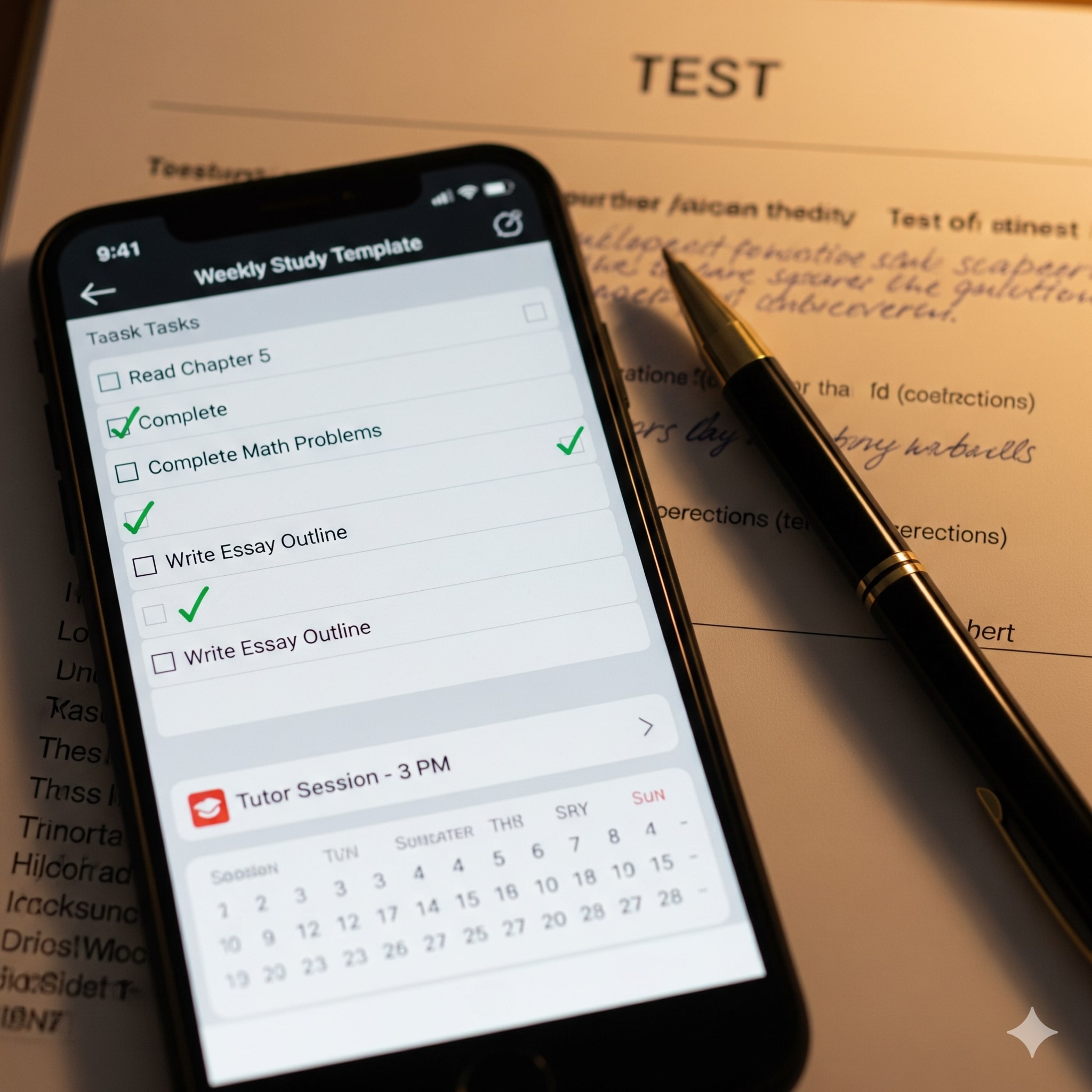
Syncing with Tutoring — Make Sessions Count
If you work with a tutor (and many students do), use your task app as the single source of truth. Share the weekly template, attach error-log snapshots, and assign follow-up tasks from each session. Tutors respond best to clear, data-driven inputs: specific question types, recurring mistakes, and timing problems.
For students using Sparkl’s personalized tutoring, this app-driven approach pairs perfectly with their 1-on-1 guidance and tailored study plans. You can sync tasks like “Clarify trig mistake — bring error log to Sparkl tutor” so that your next tutoring session is sharply focused and efficient.
Staying Motivated: Micro-Goals, Rewards, and Streaks
Motivation wanes—so design your app to protect it. Add micro-goals with small rewards:
- Complete three error-log items = 15-minute break or favorite snack.
- Finish a full practice test and review = movie night.
- Maintain a 7-day streak of daily vocab = buy new stationery.
Turn “study” into a sequence of wins. Task apps with streak features or habit trackers help you visualize progress and keep momentum.
Personalizing Your Plan: Adapting As You Improve
The best plans change when the data says so. After each practice test, update your long-term plan. If Reading shows steady improvement but Math stalls, rebalance weekly time blocks and assign more Math drills. Use the app’s analytics if available, or simply review completed tasks and time spent each week.
Schedule a monthly “plan check”—a 30–45 minute task where you look at scores, adjust the study split, and set the next month’s priorities. If you’re working with a Sparkl tutor, bring this check in-session: tutors can help interpret trends and update your tailored study plan.
Real-World Study Examples
Example 1 — The Busy Junior (8 hours/week): Prioritize timed sections and one full test every two weeks. Use 30-minute daily warm-ups and a weekly tutor session for concept clarification.
Example 2 — The Last-Minute Senior (4 weeks to test): Compress the plan: 3 full-length tests spaced 1 week apart, daily error-log review, and intensive targeted drills. Schedule daily 90-minute study blocks and a tutor session twice a week for rapid remediation.
Sample Task Names You Can Copy-Paste
- “Practice Math — 25 adaptive problems (time 45m)”
- “Bluebook test: Full Digital SAT — simulated test day”
- “Error Log Review: Questions #5–12 (Algebra)”
- “Tutor: Discuss hardest 10 mistakes (attach error log)”
- “Vocab Warm-up — 15 words (context sentences)”
Use Automation to Save Time
Many apps let you automate recurring tasks or send reminders. Automate these items:
- Weekly template creation: duplicate the week structure automatically.
- Post-test tasks: automatically create “Score Analysis” and “Error Categorization” tasks when a test is marked complete.
- Reminders before tutor sessions to attach error logs and prepare questions.
Automation reduces friction—so you spend more time studying and less time planning.
One-Week Deep-Dive Example: Turning Weakness into Strength
Imagine your last practice test shows you miss most questions in data interpretation (Reading) and exponential functions (Math). Here’s a focused week inside your app:
- Monday: Two 45-minute sessions — Reading data interpretation drills; Math exponential function review.
- Tuesday: Tutor session — review incorrect questions and strategy adjustments. Assign follow-up drills.
- Wednesday: Timed Reading section — focus on passages with data (30–45 minutes).
- Thursday: Math problem set — 20 mixed function questions with error log entries.
- Friday: Review session — fix misunderstandings, add flashcards for formula recall.
- Saturday: Short mock (two sections back-to-back) to practice transitions and timing.
- Sunday: Light review plus plan-check for next week.

Measuring Progress: What Metrics to Track
Keep an eye on both outcome and process metrics. Outcome metrics measure the end result, while process metrics measure the habits that get you there.
- Outcome metrics: Section scores, overall SAT score, percentile.
- Process metrics: Number of practice questions completed, error-log review frequency, number of tutor sessions, streaks maintained.
Check both weekly and monthly. If process metrics are strong but outcomes lag, tweak practice quality. If outcomes improve but process slips, congratulate yourself—and lock in the successful habits with new reminders.
Tips for Test Day: Put It in the App
Task apps are great for test-day logistics. Create these pre-test tasks and reminders:
- Install and test Bluebook on your device (with time buffer).
- Confirm test center and arrival time, travel plan, and ID and admission ticket.
- Pre-test checklist: charger, allowed calculator (if applicable), snacks, water, and sleep plan.
- Calm-down routine: 10-minute breathing or walk before you start.
Troubleshooting Common Roadblocks
Problem: You keep skipping scheduled sessions. Fix: Move them into your calendar as unbreakable events (treat them like class). Problem: Tasks feel too big. Fix: Break into 15–30 minute chunks and prioritize the first action. Problem: You can’t keep consistent tutor communication. Fix: Use your task app to share your error log before each session so the tutor doesn’t have to hunt for context.
Final Notes: Build a System You’ll Stick With
Organizing SAT prep with a task management app is less about the app and more about the system. Pick an app that fits your style, build a repeatable weekly template, use tagging and automation to reduce friction, and connect your study plan to tutoring and reflection. With consistent, measured work you’ll transform practice tests from a trial into a roadmap of improvement.
One final tip: when you combine structured, app-driven planning with personalized support—like 1-on-1 guidance from a tutor who can tailor lessons to your error log—you multiply your efficiency. Sparkl’s personalized tutoring can slot neatly into this approach, providing expert tutors, tailored study plans, and AI-driven insights that help you focus the right way at the right time.
Ready to Start? A Simple 10-Minute Setup Checklist
Do this one evening and you’ll be set for the next month:
- Create a project named “Digital SAT Prep” in your task app.
- Add your pinned goal (target score + date).
- Import the weekly template from this post and duplicate it for the next 4 weeks.
- Set up an error log as a subproject or tagged list.
- Schedule your first full-length practice test on the calendar.
- Book a weekly tutor session and attach an initial error-log snapshot.
- Turn on reminders for at least three recurring tasks: daily warm-up, weekly plan-check, and post-test review.
Parting Thought
Studying for the Digital SAT is a marathon made of many short runs. Task management apps transform scattered effort into steady progress. They keep your goals visible, your work organized, and your tutor sessions focused. Start small, iterate often, and let your error log tell the story of improvement. With the right tools and a clear plan, that target score becomes not an aspiration but a planned destination.
Good luck—and remember: consistency beats intensity. Take one small, well-chosen step today and watch how quickly those steps add up.

















No Comments
Leave a comment Cancel