
Why Automate SAT Prep Reminders? The Small Habit That Wins Exams
Studying for the SAT is less about last-minute genius and more about steady, purposeful work. Reminders are the scaffolding for that steady work. Instead of depending on willpower (which drains fast), automated reminders do the heavy lifting: they nudge you, build repetition, and reduce the mental overhead of remembering what to do next.
Think of automation as the autopilot for your study life. When it’s set up well, it keeps everything aligned with your goals — practice tests, targeted skill work, review sessions, and even appointments with tutors. You’ll waste fewer hours wondering what to study and more hours actually improving.
Decide What to Automate: A Simple Framework
Before you reach for an app, ask three practical questions for each task:
- How often should this happen? (daily, weekly, before test day)
- What kind of reminder works best? (push notification, email, SMS, calendar alert)
- How urgent or flexible is the task? (fixed appointment vs. flexible practice)
Examples of tasks to automate:
- Daily 45-minute timed practice (Math on Monday, Reading on Tuesday)
- Weekly mixed practice and error review
- Full-length practice tests with proctor reminders (day before, morning of)
- Registration and payment deadlines
- Appointments with tutors (including pre-session prep reminders)
Tip: Prioritize the “Big Rocks”
Automate essentials first: full-length tests, consistent practice blocks, and review sessions. Smaller things (like remembering to charge your calculator) can use simpler checklists or quick one-off reminders.
Tools and Techniques — Choose What Fits Your Life
There’s no single “best” tool. The right approach balances reliability, convenience, and how much setup you’re willing to do. Below are common, practical paths students use.
1) Built-in Calendar Apps (Google Calendar, Apple Calendar)
Why it works: Nearly everyone uses a calendar for school or personal events — which makes it perfect for study blocks and deadlines. Calendars are great for visualizing time and creating recurring events.
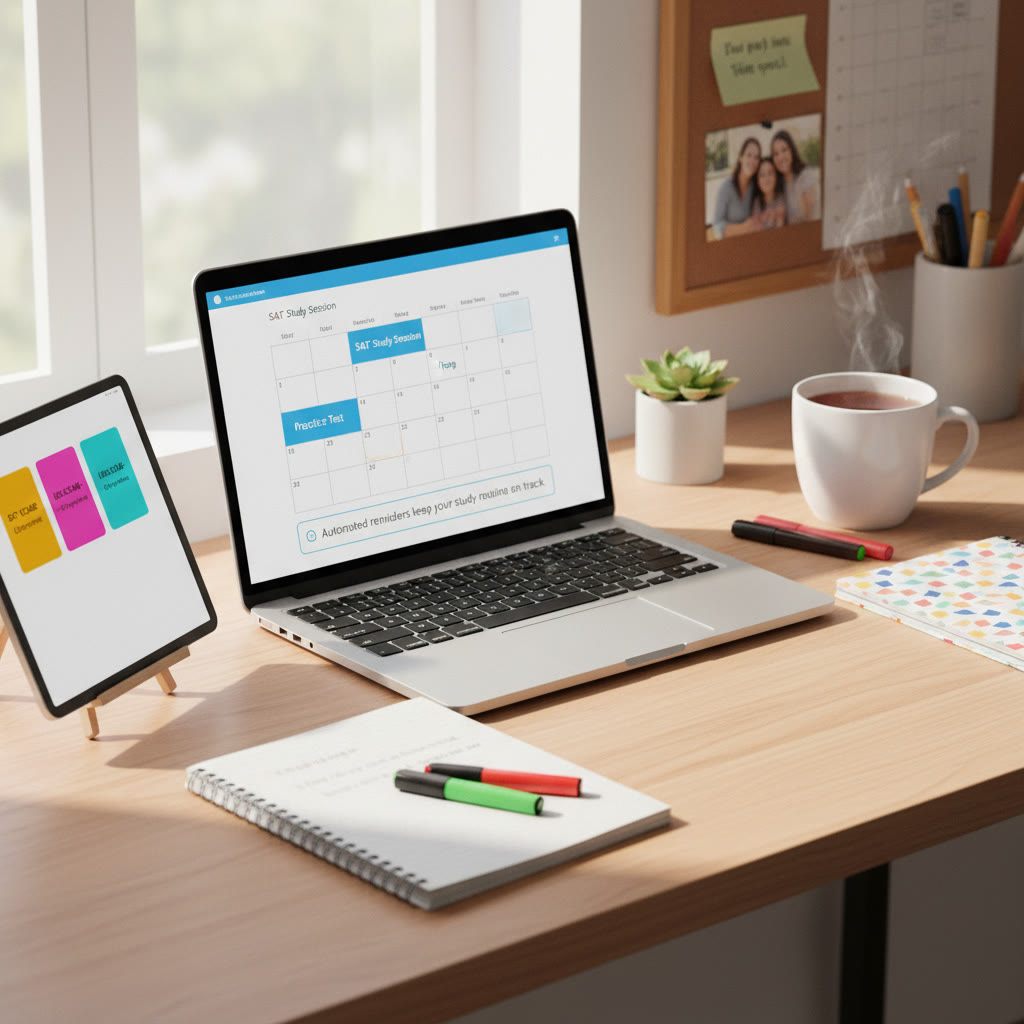
- Set recurring events for study blocks (e.g., “SAT Math Practice: 5:00–6:00pm, M/W/F”).
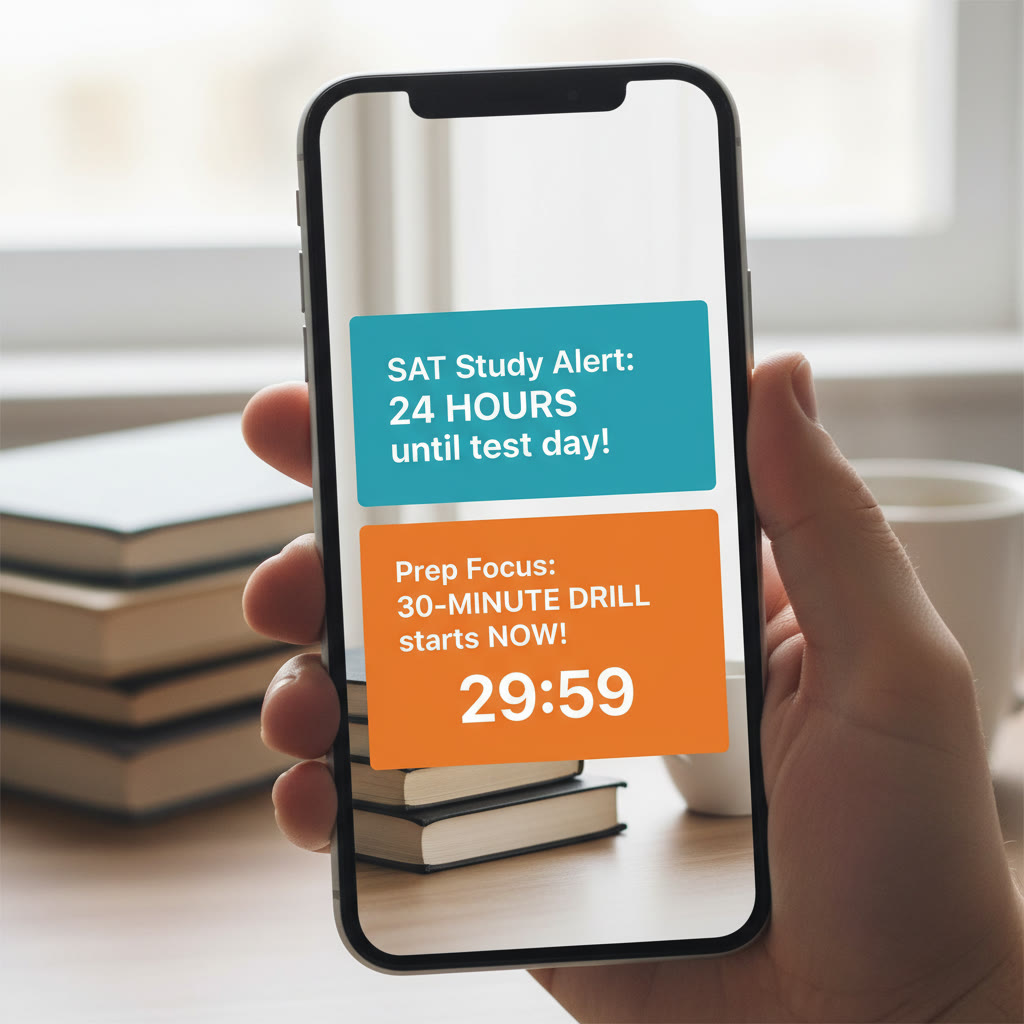
- Add multiple alerts: 24 hours before (prep), 1 hour before (gather materials), and at start time.
- Use color-coding (e.g., red for tests, blue for review) so your week is readable at a glance.
2) Task Managers (Todoist, Microsoft To Do, Apple Reminders)
Why it works: Task apps handle recurring tasks with more nuance than calendars. You can set priorities, add subtasks (like “review problem #12–#20”), and check things off for satisfaction.
- Create a “SAT Prep” project with templates for daily and weekly routines.
- Use natural-language recurrence (e.g., “every weekday at 6pm”) and reminders for overdue tasks.
- Leverage labels or tags to filter by section (Reading, Writing, Math, Essay if applicable).
3) Spaced Repetition & Flashcard Reminders (Anki, Quizlet)
Why it works: Vocabulary and short-form skills benefit from spaced repetition. Anki schedules reviews automatically and can be part of your daily reminder stack.
- Set a daily review reminder at a consistent time when you’re mentally fresh.
- Combine with a quick 10–15 minute warm-up before a longer practice session.
4) Automation Platforms (IFTTT, Zapier) and Scripts (Google Apps Script)
Why it works: These platforms bridge apps together. If you want a Trello card to become a calendar event, or a Google Sheet row to send an email reminder, these tools do it without heavy coding.
- Use Zapier to create workflows like: “When tutor schedules a session in Sparkl, create a calendar event and task with reminders.” (More on how automation can work with personalized tutoring below.)
- Use Google Apps Script to send custom email nudges from a study schedule spreadsheet — great for recurring weekly summaries.
5) Device Automation (iOS Shortcuts, Android Tasker)
Why it works: For deeper personalization — location-based reminders (e.g., “Remind me to study when I arrive at the library”) or phone modes that trigger study blocks (Do Not Disturb during practice) — device automation is powerful.
- iOS Shortcuts example: When tapping a “Start SAT Session” shortcut, launch a music playlist, enable Do Not Disturb for 45 minutes, and set a timer.
- Android Tasker example: If you plug in headphones between 4–7pm, automatically open your task app and start a 50-minute timer.
Step-by-Step Examples You Can Set Up Today
Example A — Weekly Plan with Google Calendar + Reminders
Set a weekly routine that includes: two 45-minute practice sessions, one 90-minute review, and one full-length test on Saturdays.
- Create recurring calendar events: Practice blocks on weekdays, review Wednesday evening, full test Saturday morning.
- Add three alerts: 24 hours before, 1 hour before, and at start. Add documents or links in the event (practice test PDF, calculator rules).
- Share the calendar with a study partner or your Sparkl tutor so everyone stays aligned.
Example B — Todoist Template for a Study Day
Use a Todoist template for an ideal study day and make it repeat every weekday.
- Task: “SAT Warm-Up (15 min)” — use checklist: 10 vocab cards, 5 grammar questions.
- Task: “Timed Practice (45 min)” — attach section name and timer link.
- Task: “Review & Notes (30 min)” — add subtask: “Add mistakes to error log.”
- Set reminders and a daily recurring schedule (e.g., “every weekday at 5pm”).
Example C — Google Sheets + Apps Script for Email Reminders
If you like spreadsheets, use a Google Sheet as a master schedule and write a short Apps Script that emails you a weekly plan every Sunday night.
- Column layout: Date | Task | Duration | Priority | Status
- Script logic: Find upcoming tasks for next 7 days and compile into an email. Send on Sunday at 8pm using time-based trigger.
How to Use Two-Tier Reminders to Beat Procrastination
One quick ping often isn’t enough. Try a two-tier system that gently escalates:
- Soft reminder: 24 hours before (calendar email or quiet notification).
- Firm reminder: 30–60 minutes before (push notification with action buttons: “Start” or “Reschedule”).
This reduces the chance you’ll snooze through important sessions and provides a second chance to commit when the task is fresh in your mind.
Table: Quick Comparison of Reminder Tools
| Tool | Best For | Typical Cost | Setup Difficulty | Notification Types |
|---|---|---|---|---|
| Google Calendar | Time-blocking, deadline reminders | Free | Easy | Push, email |
| Todoist / Microsoft To Do | Recurring tasks, checklists | Free / Paid tiers | Easy | Push, email |
| Anki / Quizlet | Spaced repetition, vocab | Free / Paid features | Moderate | App notifications |
| IFTTT / Zapier | Cross-app automations | Free / Paid tiers | Moderate | Email, SMS, push via connected apps |
| iOS Shortcuts / Tasker | Device-level automation, location triggers | Free / One-time | Advanced | Push, system actions |
Personalize Reminders Around Your Life
Automation only works if it fits your real day — class schedules, sports, work shifts, and family commitments. Here’s how to personalize reminders so they actually get followed:
- Block study times when you’re most alert (many people do best in late afternoon or after a short break following school).
- Use shorter, high-quality sessions when your schedule is tight—30–40 minutes of focused work beats two hours of distracted study.
- Schedule study around fixed commitments so you don’t face constant conflicts.
Integration with Tutoring — How Sparkl’s Personalized Tutoring Fits In
If you work with a tutor — and many students find the focused feedback invaluable — reminders can sync directly with that relationship. Sparkl’s personalized tutoring offers 1-on-1 guidance and tailored study plans that naturally pair with automated reminders:
- Your Sparkl tutor can suggest which assignments should be recurring and what recovery steps to take when a task is missed.
- Sparkl’s expert tutors can help convert feedback from a session into concrete calendar events or task templates that you automate, so the learning sticks.
- With AI-driven insights, Sparkl can highlight weak areas and recommend a reminder cadence that targets those skills—meaning reminders won’t just be clockwork, they’ll be smart and prioritized.
Behavioral Design: Make Reminders Hard to Ignore
Design your reminders so they require a meaningful response. Small behavioral tweaks improve completion rates:
- Include action steps in the reminder: instead of “Study Math,” say “Complete 10 algebra practice questions (45 min).”
- Use a brief pre-commitment: add a one-click button to start a timer, or a checklist link that opens your practice doc.
- Offer an immediate reward: a 10-minute break, a quick walk, or a point system that you track in a habit app.
Practical Automations — Sample Workflows
Here are a few real-world automation workflows you can adapt:
- Workflow: Tutor Session → Prep Reminder
- When your Sparkl tutor books a session, trigger a Calendar event with 24-hour and 1-hour prep alerts and an attached list of items to prepare.
- Workflow: Missed Practice → Gentle Nudge + Tutor Alert
>- If a task is marked incomplete in Todoist by 9pm, send a gentle email summarizing missed tasks and offer a reschedule option. Optionally notify your tutor to adjust the next session.
- Workflow: Weekly Progress Snapshot
>- Every Sunday evening, compile a short progress email from your study log (Google Sheets) that highlights improvement areas and next week’s automated plan.
Common Pitfalls and How to Avoid Them
Automation isn’t magic. It needs maintenance and sensible boundaries.
- Notification fatigue: Too many pings become background noise. Keep alerts focused and escalate only for important tasks.
- Over-scheduling: Don’t block every hour. Leave buffer time for homework, life, and mental rest.
- Ignoring the data: If a reminder keeps getting snoozed, change the plan. Maybe the time is bad, the task is too long, or the focus area needs reassessment.
Privacy and Safety Considerations
When automating, be mindful of account permissions and personal data. Use trusted apps, keep backups of important schedules, and review what third-party services can access. If you’re sharing calendars with a tutor, control what details are visible — you can share only session times without exposing every entry.
Sample 4-Week Reminder Plan for a Busy Student
Here’s a compact plan you can import into a calendar or adapt into a task app. It balances practice, review, and full tests while leaving space for schoolwork.
- Weekdays: 45 minutes focused practice (section rotates: Mon Math, Tue Reading, Wed Writing, Thu Math, Fri Mixed). Reminders: 24 hours and 1 hour prior.
- Wednesday evening: 60–90 minute error review session. Reminder: 2 hours before.
- Saturday: Full-length practice test every other week. Reminders: 48 hours, 12 hours, and morning of.
- Sunday night: Weekly progress email generated from study log (or a manual quick write-in to reflect and plan).
Final Notes — Make Automation Work for You
Automation is a tool, not a mandate. The point is to make consistent practice simple and to give your brain fewer tiny decisions. Use calendars for time, task apps for checklists, spaced-repetition apps for memory work, and device automations to remove friction. If you use a tutor—like Sparkl’s personalized tutoring with 1-on-1 guidance, tailored study plans, expert tutors, and AI-driven insights—hook those recommendations into your automated plan so your reminders don’t just prompt you to work, they prompt you to work on the right things.
Start small: automate one or two key reminders this week (a daily practice block and the next full test), see what changes, and iterate. After a few weeks, you’ll have a rhythm that reduces stress, increases progress, and helps you walk into test day with confidence.
Ready to automate? Pick one reminder now, set it up, and notice the difference in a week. Small habits, consistently executed, are what turn practice into performance.






















No Comments
Leave a comment Cancel