
How to Use Google Calendar to Schedule SAT Prep Blocks (and Actually Stick to Them)
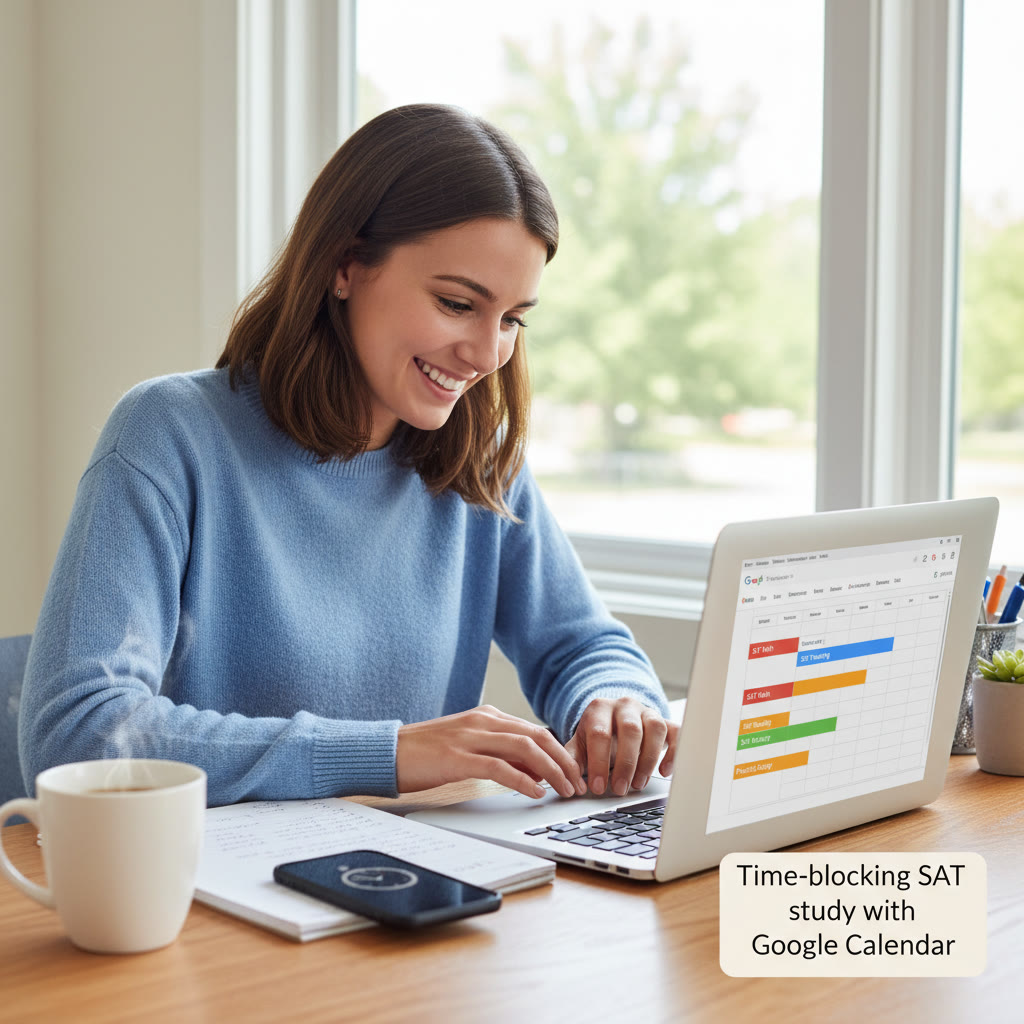
When you’re balancing school, activities, and a social life, SAT prep can easily slip into the background. That’s where Google Calendar comes in: it’s not just for class times and dentist appointments. With intentional time blocking, clear labels, and small rituals, your calendar becomes the engine that drives steady, sustainable progress.
Why Google Calendar for SAT prep?
Before we jump into the how-to, here’s the quick sell: Google Calendar is free, syncs across devices, and is flexible enough to adapt whether you’re prepping six months out or cramming for a retake. More than that, it helps turn vague goals into specific actions—“study SAT” becomes “Math: Algebra practice, 5–6pm, Tuesday.” Clarity beats chaos every time.
Get set up: calendars, colors, and the psychology of commitment
Start by making SAT prep visible. One of the neatest tricks is to create a dedicated SAT calendar separate from your school or personal calendars. That simple separation reduces visual noise and makes progress easier to track.
Step 1 — Create a dedicated SAT calendar
- Open Google Calendar, click the + next to “Other calendars,” and choose “Create new calendar.” Name it something like “SAT Prep” or “SAT — Study Blocks.”
- Set the calendar’s default notifications and time zone to match your routine so alerts are consistent across devices.
Step 2 — Choose colors that help you focus
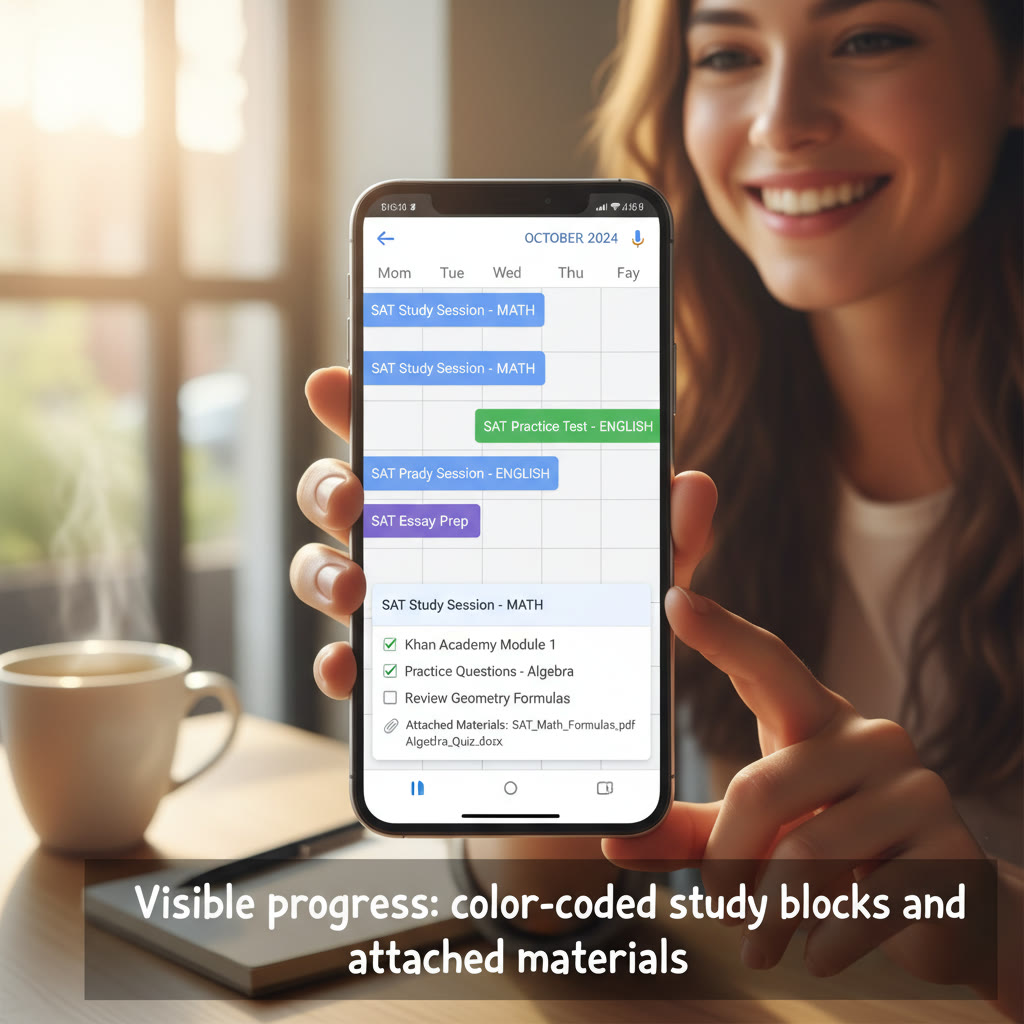
Colors are emotional signals. Use a small palette and keep it consistent:
- Red or orange for full mock tests (high importance).
- Blue for focused study blocks (less stress, more flow).
- Green for review sessions and quick daily practice.
- Gray for low-priority tasks (administrative work: register for a test, send a tutor message).
Seeing a visually organized week helps your brain accept the schedule as real and doable.
Design your SAT study ecosystem in Google Calendar
A single study block doesn’t have to be a single type of activity. The smartest schedules mix focused practice, content review, test simulation, and rest. Below are templates and practical ways to implement these using Google Calendar features.
Block types and how to schedule them
- Focused practice: Content-specific work (e.g., Algebra, Grammar). Use 45–75 minute blocks depending on your attention span.
- Mixed practice: Short, 25–40 minute sessions using question sets that mix math and reading—great for improving transitions.
- Full-length practice tests: Block 4 hours and add another hour for review and analysis.
- Review sessions: Short, 15–30 minute sessions summarizing mistakes from recent practice.
- Warm-up/brain preparation: 10–15 minutes before a long block to do quick drills or reading.
Use recurring events and templates
Instead of rebuilding structure each week, create events that recur weekly. For example, set “Math: Problem Set” every Tuesday and Thursday at the same time. If your schedule fluctuates, use the “Custom” recurrence rule—”every weekday” or “every Monday, Wednesday, Friday.”
Build a weekly calendar: a sample schedule
Here’s a realistic weekly schedule for a student balancing school and aiming for steady improvement. You can paste these into your own calendar as events or use them as inspiration.
| Day | After School (5–7pm) | Evening (8–9pm) | Weekend |
|---|---|---|---|
| Monday | Focused: Reading Comprehension (5–6pm) | Review: Mistakes & flashcards (8–8:30pm) | Timed section practice: Reading (Saturday morning) |
| Tuesday | Focused: Algebra practice (5–6pm) | Mixed practice (8–8:30pm) | Full-length practice test (Sunday morning) |
| Wednesday | Grammar & Writing (5–6pm) | Vocabulary review (8–8:15pm) | Test review session (Sunday afternoon) |
| Thursday | Strategy & timing drills (5–6pm) | Short practice set (8pm) | Light review or off |
| Friday | Light review or off (rest) | Movie night / relaxation | — |
This table is a blueprint. The important part is rhythm: frequent, varied practice, with rest built in so you don’t burn out.
Details that turn good plans into real progress
1. Use the description field like a tiny study guide
Every calendar event has a description. Treat it as your micro-plan: list the specific pages, question sets, or techniques to focus on. Example description for a 60-minute math block:
- Warm-up: 10 minutes, mental math drills (fractions, percents)
- Main set: 35 minutes, 15 algebra problems (mixed difficulty)
- Wrap-up: 15 minutes, review errors and add to error log
2. Add attachments and checklists
Attach practice PDFs or paste a checklist into the description so you don’t waste time hunting down materials. If you work with a tutor—say, via Sparkl’s personalized tutoring and benefits—your tutor can suggest materials and you can attach them directly to the event for shared reference.
3. Use reminders strategically
Set two reminders: a 30-minute heads-up to prepare (get water, charger, quiet space) and a 5-minute alert to start. Over time, these small cues build a ritual that makes it easier to begin.
4. Schedule recovery and buffer time
After an intense practice or full test, your brain needs decompression. Add a 30–60 minute “buffer” event labeled “Recovery & Reflection” so you avoid jumping straight into homework or heavy screen time. These buffers protect the quality of future study.
Techniques to increase focus inside each block
Calendar blocks are containers; what you do inside them matters. Here are study techniques tailored to block length.
| Block Length | Best Use | How to Structure |
|---|---|---|
| 15–25 minutes | Warm-ups, flashcards, quick drills | Pomodoro-style 25/5, single focused task |
| 45–60 minutes | Deep content practice | 10-minute warm-up, 35–40 minutes practice, 10-minute review |
| 3–5 hours | Full practice test + review | Full test timing + 60–90 minutes debrief & error analysis |
Try pairing the Pomodoro Method with Google Calendar: create a repeating event sequence of “25 min focus” followed by “5 min break” blocks. It’s visual, flexible, and fits into exam prep well.
Advanced calendar features that help you level up
Share your calendar with accountability
Share your SAT calendar with a parent, study partner, or your Sparkl tutor. When someone else can see your blocks, it raises accountability in a supportive way—not as pressure, but as encouragement. If your tutor is part of Sparkl’s personalized tutoring and benefits, sharing the calendar helps them tailor sessions and spot conflicts early.
Use goals and tasks for small wins
Google Calendar has Goals and Tasks features. Use “Tasks” for one-off items (e.g., register for test) and “Goals” for habits (e.g., “Daily 20-minute vocab”). If Google suggests a time for a Goal, accept it or move it manually into a slot that already feels protected.
Color-code intensity and type
Beyond the basic color trick earlier, you can add emoji prefixes to event titles like ” Math: Problem Set” or “⏱ Mock Test” to give fast context at a glance. Emojis don’t clutter but add a little personality to the calendar.
Practical tips for test day and the week before
The final week should be about consolidation, not frantic new learning. Use Google Calendar to taper appropriately.
- Schedule shorter blocks focused on light review and practice under test conditions.
- Add practical events the day before: “Pack test kit” (admission ticket, photo ID, calculator with fresh batteries, snacks), “Confirm test center route” and “Good sleep: lights out by 10pm.”
- Block a relaxed hour the night before for a confidence routine (breathing, light review of strategies, not new content).
Simulate the test in calendar form
Put the test day into your calendar as a full event labeled “SAT Test — Simulated Timing.” Include start time, breaks, what sections you’ll take, and a checklist. Running a rehearsal using the calendar familiarizes you with the rhythm and helps you avoid surprises.
Track progress and tweak your plan
Calendars are helpful, but data makes them powerful. Every Sunday, take 20–30 minutes to review your calendar and answer a few questions:
- Which blocks did I miss and why? (conflict, fatigue, unclear task)
- Which blocks felt the most productive?
- Is my difficulty distribution balanced (enough math vs reading vs grammar)?
Use recurring “Weekly Review” events to force this reflection. If you’re working with a tutor through Sparkl’s personalized tutoring and benefits, bring these notes to your session—your tutor can use AI-driven insights and 1-on-1 guidance to refine your calendar and study priorities.
Real-world examples: small tweaks that make a big difference
Here are three mini-case studies (composite examples based on common student patterns) to show how small changes produce big gains.
Case study 1 — The Overbooked Sophomore
Problem: Juggling club activities and homework, study sessions were sporadic.
Calendar fix: Blocked three 40-minute windows per week at consistent times (post-dinner), and used gray calendar slots for clubs to avoid double-booking. Result: Consistency improved, homework didn’t crowd out SAT prep, and weekly review showed steady accuracy gains on practice sets.
Case study 2 — The Weekend Warrior
Problem: Only studying on Sundays led to burnout and poor retention.
Calendar fix: Distributed practice across five days with short 20–30 minute evening blocks and preserved Sunday for full-length practice. Result: Less burnout, better retention, and stronger simulated-test performance.
Case study 3 — The Student With a Tutor
Problem: Sessions with a tutor felt disjointed from independent study.
Calendar fix: Shared the SAT calendar with the tutor, attached recent practice tests to session events, and scheduled a 15-minute pre-tutor warm-up and a 20-minute post-tutor review. If your tutor is part of Sparkl’s personalized tutoring and benefits, these small coordination steps let you maximize expert time and AI-driven insights between sessions.
Final checklist before you close this tab
- Create a dedicated SAT calendar and color-code it.
- Set up recurring blocks for focused practice, mixed practice, and full-length tests.
- Use the description box for micro-plans and attach materials.
- Set two reminders (prep and start) and include buffers.
- Share the calendar with an accountability partner or tutor.
- Schedule weekly reviews and adjust based on data and energy levels.
Closing thoughts: calendars are kind, consistent coaches
Google Calendar won’t magically raise your SAT score by itself, but it will remove friction, preserve momentum, and create a record of what you did. When study becomes visible and scheduled, you’ll stop guessing and start improving—gradually and reliably.
If you’d like to combine calendar-driven focus with expert help, Sparkl’s personalized tutoring and benefits—1-on-1 guidance, tailored study plans, expert tutors, and AI-driven insights—fit naturally into this workflow. Share your calendar with your tutor, review it together, and let short, deliberate improvements compound into meaningful score gains.
Start small. Book your first two-week experiment in Google Calendar now: one recurring 45-minute focused block three times per week plus one practice test every other weekend. Track, reflect, and adjust. That’s how habits turn into scores.
Now go open your calendar—and make your future self proud.

















No Comments
Leave a comment Cancel