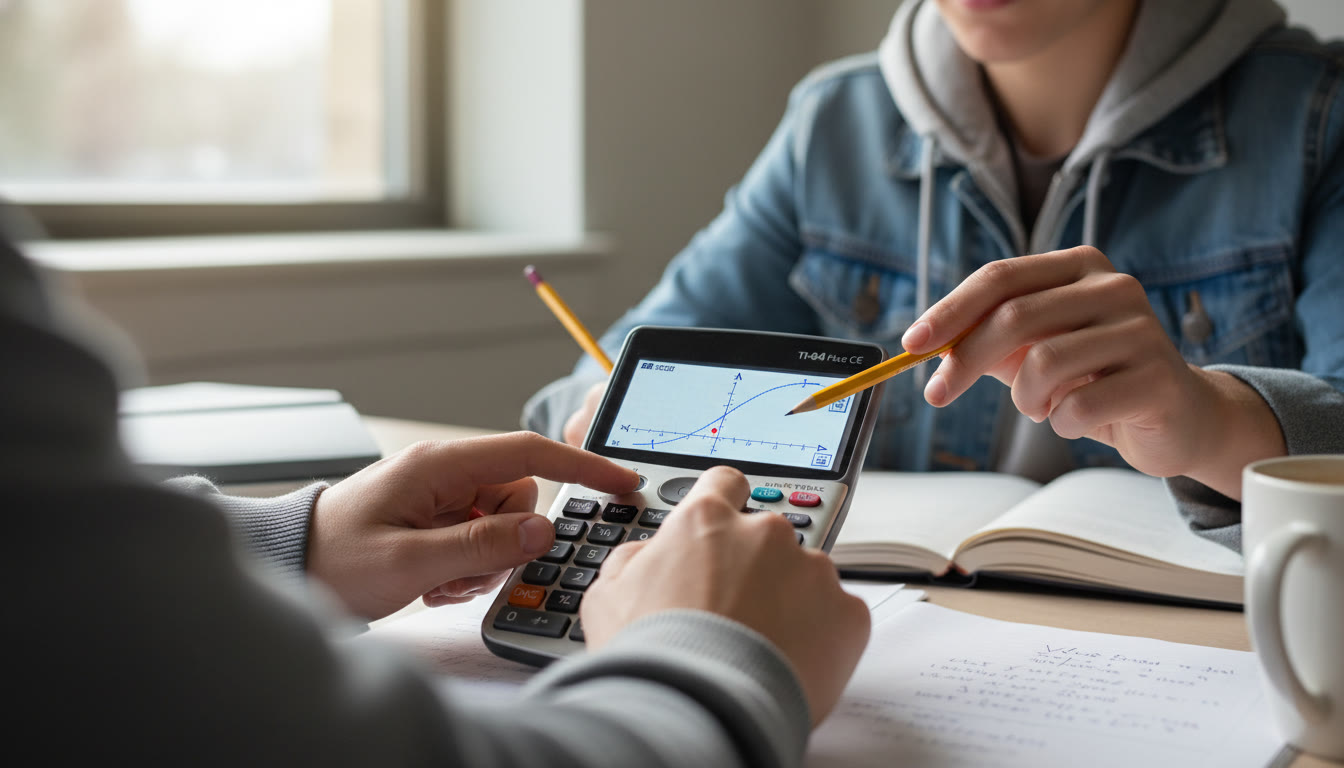

Why a Keystroke Plan Wins You Time (and Calm) on Exam Day
There’s a quiet superpower that separates the students who fumble with their calculators and the ones who finish with time to spare: a thoughtful, practiced keystroke plan. This is not about memorizing every function on your graphing calculator — it’s about building clear, repeatable workflows for the things you’ll do most often on the AP exam. When the clock is ticking and nerves are nudging at your concentration, those keystroke plans act like a trained teammate sitting silently beside you.
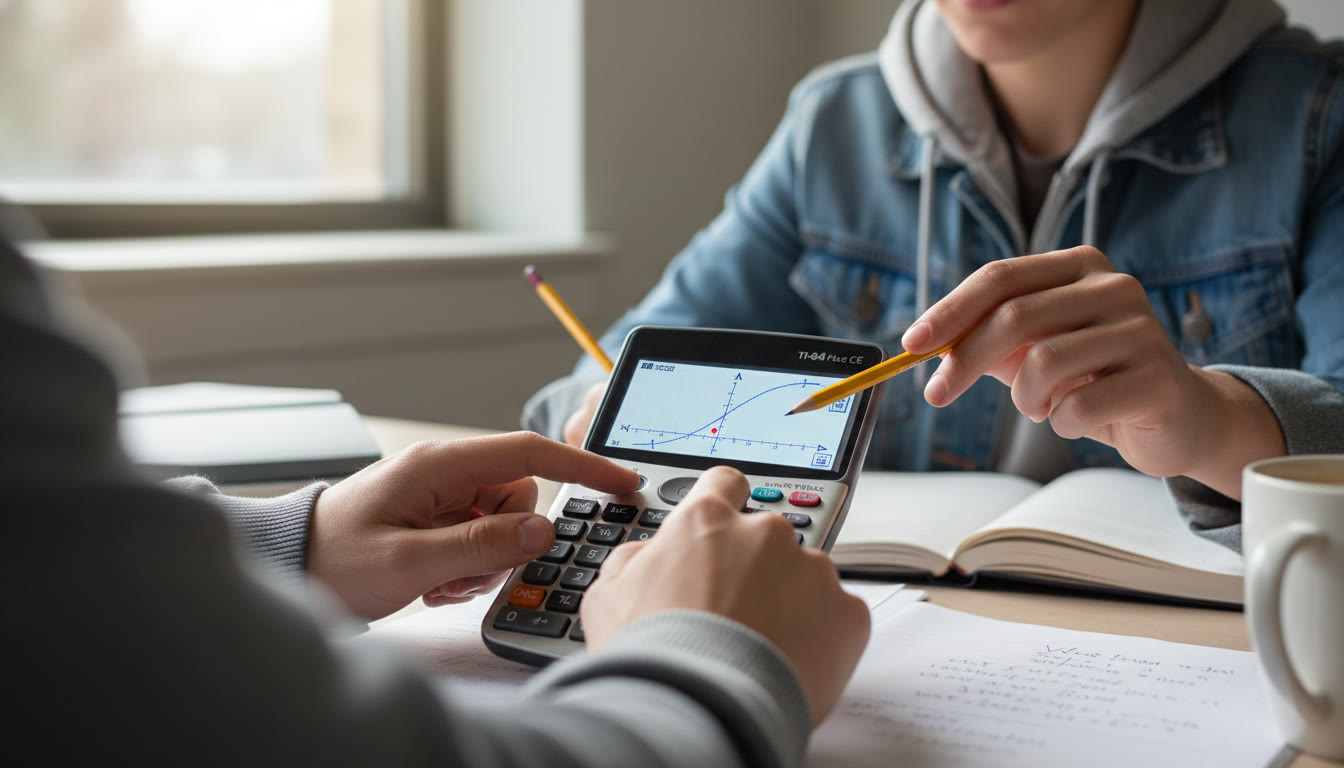
What a Keystroke Plan Is (And Isn’t)
A keystroke plan is a short, prioritized list of button sequences and calculator settings you practice until they become second nature. It covers the basic setup you do at the start of a session (mode checks, clearing stray graphs or lists), quick ways to convert between forms (fraction to decimal, exact to approximate), and one or two go-to methods for common exam tasks (graphing intersections, regression, solving equations numerically). It is not an exhaustive map of every function; that would overload you. Instead, it’s a compact toolkit — the three-to-seven keystroke sequences you use 80% of the time.
Before the Exam: Build Your Foundation
Exam-day success starts long before you walk into the testing room. A solid pre-exam routine reduces surprises and saves precious minutes.
Checklist: A Practical Pre-Exam Keystroke Routine
- Charge backup batteries and bring a spare set.
- Practice your keystroke plan under timed conditions at least once a week for a month before the exam.
- Familiarize yourself with the exact model you’ll use — differences between models can change button locations and menu names.
- Make a 1-line summary of your keystroke plan on a sheet at home (not to bring to the exam) and rehearse it until it’s memorized.
- Decide whether you’ll use the built-in Desmos option (in Bluebook for digital APs) or a permitted handheld calculator; know the tradeoffs.
Why Model Familiarity Matters
Approved calculators vary slightly in layout and menu labels. On many AP exams you can use the built-in Desmos calculator through Bluebook or a permitted handheld graphing calculator. If you practice on a different model than what you bring, expect tiny friction: menus are renamed, keystroke shortcuts differ, and graphing windows might behave differently. Treat your practice device like your exam-day partner.
Keystroke Plans by Common Exam Tasks
Below are bite-sized, reliable keystroke plans for the tasks students most often face in AP Calculus, AP Physics, AP Chemistry, and AP Statistics. Practice these until they are as automatic as tying your shoe.
1) Quick Mode and Window Check (30–60 seconds)
Why: A wrong mode (degree vs radian, float vs normal) can wreck a solution. Start every session with a short standard check.
- Mode: ensure Degree vs Radian is set appropriately for the problem. For calculus and many physics problems, you’ll often be in Radian mode; for simple trig geometry you may need Degree.
- Display: Set to Float with 6–8 decimals for accuracy without clutter.
- Graphing Window: Use standard window (Xmin=-10, Xmax=10, Ymin=-10, Ymax=10) unless the problem explicitly needs a different window.
Typical keystrokes: MODE → verify angle setting → 2nd → FORMAT (or equivalent) → set decimals → WINDOW → ZSTANDARD (if available) to reset to default graph window.
2) Rapid Equation Solving / Root Finding
Why: Many AP free-response questions ask for roots or intersection points. Numerical solvers are reliable and fast.
- Enter the function as y1 (or in Desmos as f(x)).
- Graph it with a reasonable window, or use a table to find sign changes in smaller steps.
- Use the built-in root/intersect command rather than manually scanning.
Typical keystrokes (handheld): Y= → enter function → GRAPH → 2nd → CALC → 2 (zero) → left bound → right bound → guess → ENTER. For intersections: 2nd → CALC → 5 (intersect) → follow prompts. In Desmos, use the intersection tool or type f(x)=g(x) and inspect results.
3) Regression and Best-Fit Lines (AP Statistics & Physics Labs)
Why: Efficiently producing a line of best fit and extracting slope/intercept saves time on multi-part questions.
- Enter paired data in L1 (x) and L2 (y).
- Turn off plots if you don’t need the scatter plot showing while fitting (saves visual clutter).
- Run LinReg (or the regression routine available in your model) and record slope and intercept exactly; check residuals if requested.
Typical keystrokes: STAT → EDIT → enter data → STAT → CALC → LinReg(ax+b) → calculate → store to Y= if you need to graph. If your calculator supports diagnostics, set Diagnostics On to get r and r^2.
4) Exact Versus Decimal Answers
Why: AP often rewards exact answers when appropriate. Know how to toggle between exact symbolic results and decimal approximations.
- Where the test expects an exact value (like sqrt(2) or pi/4), use fraction or simplified radical output if your calculator supports it.
- When you need a decimal approximation for checking or when the prompt requests it, use an approximate command or the decimal key.
Typical keystrokes: For fraction to decimal: MATH → FRAC/DEC or use the decimal key (≈) on models that have it. For simplifying radicals, use the calculator’s algebra features if allowed (some handhelds may not provide symbolic simplification).
Smart Shortcuts and Time-Savers
Beyond task-specific plans, a few small habits consistently save time and reduce errors.
Use Variable Storage Strategically
When a problem uses a sequence of values — say, a constant k derived from earlier — store it in a variable rather than retyping. It’s faster and reduces transcription errors. Typical keystroke: answer → STO → ALPHA → choose a letter (A, B, C).
Leverage Graph Trace and Table Views
When a numeric answer is near an obvious graph feature, use TRACE to jump close to it, then refine with a solver. Alternatively, the table view is excellent for spotting where values cross or change sign.
Know When Not to Use the Calculator
Some parts of AP exams are designed to be solved elegantly without a calculator. If you can do algebra or reason through a limit, do it — it’s often quicker and cleaner than wrestling with numeric approximations.
Sample Keystroke Plan: AP Calculus AB (10–12 keystrokes most used)
The plan below is a minimal workflow many students find reliable in the calculator-permitted parts of AP Calculus.
| Purpose | Keystrokes / Steps | Why It Helps |
|---|---|---|
| Standardize display | MODE → Angle: RAD/Deg → Display: Float 6 | Prevents silly mode errors and gives consistent precision |
| Reset window | WINDOW → ZStandard (or set Xmin/Xmax manually) | Ensures graphs show typical features without guessing |
| Graph function | Y= → enter f(x) → GRAPH | Fast visual of behavior and roots |
| Find root | 2nd → CALC → 2 (zero) → bounds → ENTER | Precise root computation |
| Numerical derivative | MATH → nderiv(f(x),x,value) or use d/dx in symbolic models | Quick slope at a point when algebra is messy |
Practice Drill
Run this plan on five practice questions that ask for tangent slopes and local extrema. Time yourself and note where you fumble — then refine the keystrokes.
Exam-Day Strategy: Order of Operations and Trouble Management
On exam day, follow a calm, efficient plan: skim quickly, do the low-hanging fruit first, then tackle the harder items while your mind is still fresh. Here’s how to integrate your calculator plan into that workflow.
Three-Phase Exam Flow
- Phase 1 — Warm-up (first 5–10 minutes): Run your standard mode and window check and glance through the section to spot easy tasks.
- Phase 2 — Execution (middle of the section): Use your keystroke plan for every calculator-required question. When you find a problem that looks intimidating, use the calculator to generate a quick numeric sketch (table, graph) and then algebraically refine the answer.
- Phase 3 — Review (final 10–15 minutes): Recompute any answers you flagged, double-check units and exact/approximation format, and ensure all parts of multi-part questions align.
When the Calculator Lets You Down
Sometimes the calculator gives a bogus result because of a mode issue, overflow, or an incorrectly entered function. If results look wrong:
- Re-check mode and parenthesis pairing.
- Try a different window or inspect a table of values.
- Use a stored variable to recompute parts of the expression step-by-step to isolate the error.
Practice Plan: Make Keystrokes Habitual
Like any motor skill, fast calculator work comes from repeated practice. Here’s a 4-week plan students can adapt to their schedules.
Weekly Framework
- Week 1: Establish your 6–8 keystroke essentials (mode check, reset window, root find, intersection, store variable, regression, decimal/exact toggle). Practice them on 10 problems.
- Week 2: Time yourself doing short mixed sets (20–30 minutes), use keystroke plans without notes, and refine shortcuts.
- Week 3: Do full past free-response calculator sections under timed conditions, using only your practiced keystroke plans.
- Week 4: Simulate exam conditions once per week; focus on calm repetition and checklists for pre-exam checks.
Micro Practice Drills
Set a 15-minute timer and complete one drill each day: regression fits, two-root problems, area under a curve via numerical integral, and a quick limits check where a numerical approach verifies algebraic intuition. These targeted drills build confidence faster than unfocused practice.
Real-World Context: Why This Matters Beyond the AP Score
Mastering a calculator workflow isn’t just about the AP score. It develops disciplined problem-solving: breaking tasks into repeatable steps, validating results with multiple representations (algebra, graph, table), and making quick numerical checks. Those habits transfer to college coursework, labs, and real-world quantitative problem solving.
Smart Support: Where Personalized Tutoring Helps
Personalized tutoring can accelerate this process. A tutor who understands your calculator model, your common error patterns, and your time management tendencies can craft a keystroke plan that fits you specifically — not just a generic checklist. Services like Sparkl’s personalized tutoring provide 1-on-1 guidance, tailored study plans, expert tutors, and AI-driven insights that highlight your weak points and track improvement. When a tutor walks through your keystroke plan with you and watches you practice, they can spot tiny habits that cost you time and turn them into strengths.
Two Simple, Powerful Rules to Remember
- Always validate. If a result seems odd, double-check it with a graph, table, or an alternate method.
- Standardize your start. A consistent mode/window/decimal routine prevents many common errors.
Final Checklist for Exam Morning
| Item | Done? | Notes |
|---|---|---|
| Charged calculator and spare batteries | Bring the exact model you practiced with | |
| Keystroke plan memorized | Run it once before the exam starts | |
| Quick list of standard modes/window values memorized | Mode, decimals, standard window | |
| Backup plan for unexpected results | Use table or numeric solver to sanity check |
Parting Thought: Small Routines, Big Wins
The difference between a panicked calculator session and a confident one is usually small: a five-step routine practiced until it is automatic. Create your keystroke plan, practice it with intention, and protect it with a pre-exam ritual. On exam day, that calm repetition lets you focus on the mathematics, not on the machine.

If you’d like, I can help build a personalized keystroke plan for your specific calculator model and AP subject — and map out a 4-week practice schedule tailored to the amount of time you have each week. If you’re working with a tutor, consider asking them to run a timed keystroke drill with you; with one-on-one guidance, you’ll close those small gaps that add up on test day.
Good luck — practice smart, breathe steady, and let your keystroke plan carry you through.


























No Comments
Leave a comment Cancel