

Why a Cloud-Based SAT Resource Folder Will Change Your Prep
Imagine opening one folder that contains everything you need for SAT prep—official practice tests, error logs, favorite drills, timed practice setups, college target sheets, and even personalized notes from a tutor. No more hunting across devices, frantic searches in old email chains, or losing handwritten flashcards right before a practice test. A cloud-based SAT resource folder makes that possible: it’s portable, searchable, and sharable—perfect for the Digital SAT era.
This guide walks you through building a practical, long-lasting digital folder system that grows with you. We’ll cover setup, structure, file types, workflows for studying and review, and ways to make the folder collaborative with teachers or a 1-on-1 tutor (for example, Sparkl’s personalized tutoring approach fits naturally into this system). Expect concrete examples, a ready-to-use template, and tips that actually save time.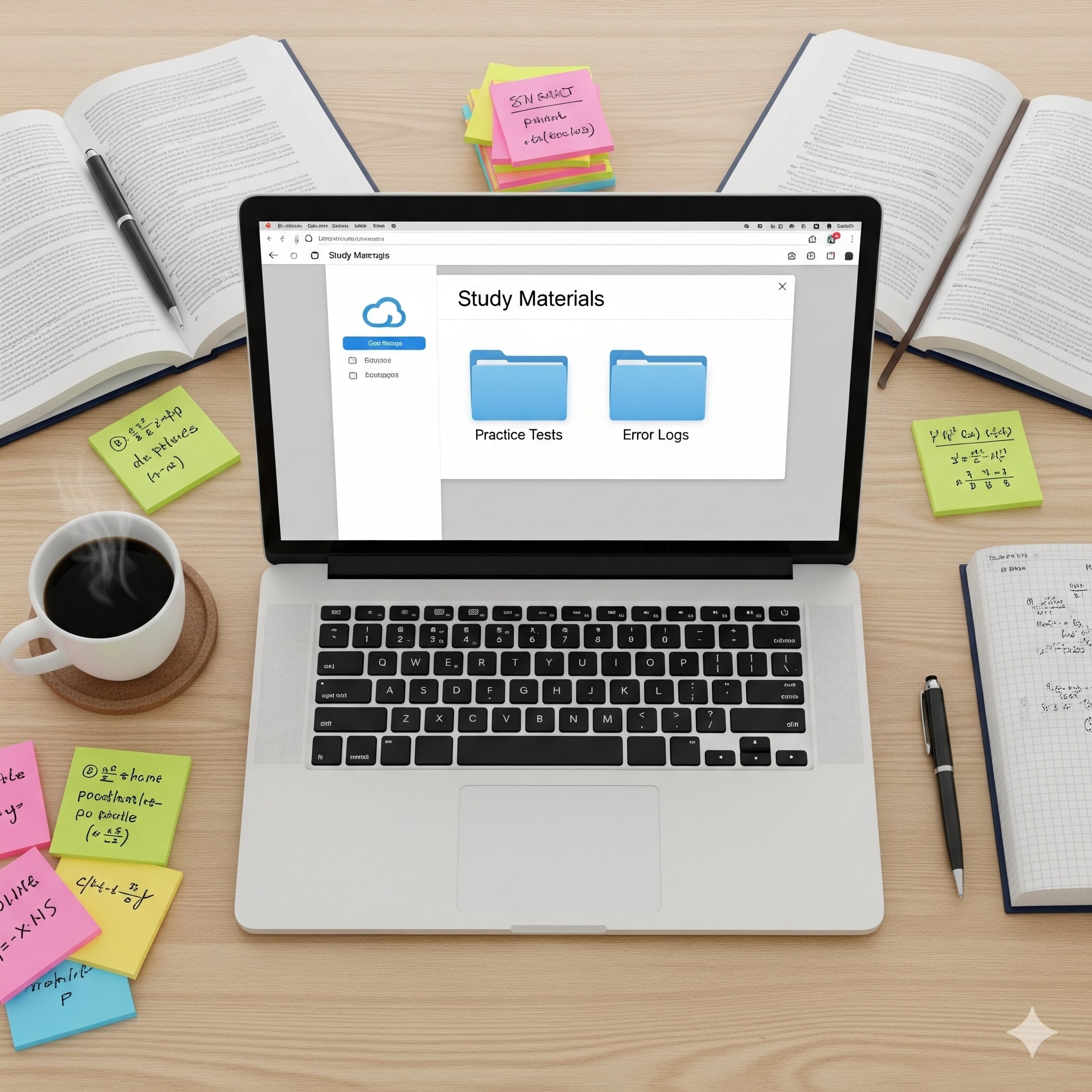
Before You Start: Choose the Right Cloud Platform
Pick a cloud provider that you (and anyone you want to share with) already use and trust. Common choices include Google Drive, Microsoft OneDrive, and Dropbox. Important criteria to consider:
- Storage space and free tier limits
- Ease of sharing and permissions
- Searchability (text in PDF/Docs should be searchable)
- Mobile and desktop sync for offline access
- Integration with note apps and scan features
If you’re working with a tutor who gives you files or records sessions, confirm the platform supports easy sharing and comments. Many students find that pairing cloud storage with a note-taking app (like Google Docs or Microsoft OneNote) gives the best mix of permanence and flexibility.
Core Folder Structure: A Simple, Scalable Template
A consistent structure keeps your resources tidy and makes review efficient. Use this template as a starting point; adapt it to your strengths and schedule.
- 00_Index (a living guide to what’s inside)
- 01_Practice_Tests
- Full-Length (by date)
- Section Drills
- Bluebook Exports / Scores
- 02_Error_Logs
- Math_Error_Log
- Reading_Error_Log
- Writing_Error_Log
- 03_Strategy_Guides
- Timing_Strategies
- Reading_Approaches
- Math_Strategies
- 04_Flashcards_And_Notes
- Formulas
- Grammar_Rules
- Common_Vocab
- 05_Study_Plans_And_Schedules
- 8-Week_Plan
- 4-Week_Intensive
- Daily_Workflows
- 06_College_Targets_And_Scores
- 07_Tutor_Sessions (recordings, notes, action items)
- 08_Resources (articles, official PDFs, practice prompts)
Why the Index Folder Matters
Put an editable document in 00_Index that explains the folder structure, naming conventions, and links to the most-used files. This is your map—use it. If you share the folder with a tutor like Sparkl, they can drop weekly action items into the Index and you’ll always know what to do next.
Naming Conventions: Make Search Work for You
Consistent file names are the difference between a calm review session and a 20-minute search panic. Use the following rules:
- Start with YYYY-MM-DD for easy chronological sorting.
- Include the file type and subject: e.g., 2025-03-12_FullPracticeTest_Math-SectionA.pdf
- Use abbreviations consistently: FR for Full-Run, PT for Practice Test, EL for Error Log.
- Add tags at the end for quick filters: _timed, _untimed, _tutor, _bluebook
Example: 2025-06-05_PT7_FullRun_bluebook_scores.json
What to Store Where: File Types and Use Cases
Different files have different roles. Here’s a quick guide to what belongs in which folder and why:
- Practice Tests (PDFs, Bluebook exports) — Keep the full test and a separate answer key for reviewing. If the platform lets you export timed-session results from Bluebook or My Practice, save those exports to track improvement.
- Error Logs (spreadsheets) — Use a spreadsheet to log question type, difficulty, time spent, mistake category (content, careless, timing), and corrective action.
- Notes (Docs) — Editable notes for strategies, annotated passages, and worked math problems. Keeping them as rich text makes them searchable and easy to copy into flashcards.
- Recordings (audio/video) — If you record tutor sessions (with permission), save short clips of explanations that you revisit when stuck on a concept.
Example File Types Table
| Folder | File Type | Purpose | Example Filename |
|---|---|---|---|
| 01_Practice_Tests | PDF / Bluebook export | Practice under test conditions; archive scores | 2025-07-10_PT9_FullRun_Bluebook.pdf |
| 02_Error_Logs | Spreadsheet | Track recurring mistakes and remediation steps | Math_Error_Log_2025_Q3.xlsx |
| 07_Tutor_Sessions | Doc / Audio | Session notes and action items from tutoring | 2025-06-20_SparklSession_AlgebraNotes.docx |
How to Build and Use an Effective Error Log
The error log is the engine of improvement. A practice test by itself is data; a practice test plus an error log becomes a plan.
Create a spreadsheet with these columns:
- Date
- Practice Test / Source
- Question Number
- Subject Area (e.g., heart of algebra, data analysis)
- Error Type (content, careless, misread, timing)
- Time Spent
- Correction / Why the right answer is right
- Action Item (drill, review video, tutoring)
- Follow-up Date (when you retest this concept)
Example entry:
2025-07-12 | PT7 | Q27 | Heart of Algebra | careless | 2:30 | Misread variable constraint; reworked algebra step-by-step | Action: redo 10 algebra problems, tutor walkthrough 7/15 | Follow-up: 7/20
When you use this consistently, patterns emerge—maybe you always miss grid-ins under time pressure, or you misinterpret contrast questions in reading. Those patterns let you target your practice instead of guessing what to study.
Daily and Weekly Workflows for the Folder
Having files is good. Using them on a schedule is better. Here are two practical routines you can follow:
Daily (30–60 minutes)
- 15–20 minutes: Quick skill warm-up (drill 10 math problems, 1 passage).
- 10–20 minutes: Review recent error log entries; complete the assigned action item.
- Optional: 10 minutes of flashcards or timed vocabulary.
Weekly (2–4 hours)
- One timed section or 1 full section under timed conditions.
- In-depth review of any new errors; log the findings to Error_Logs.
- Update the 00_Index with notes or newly discovered resources.
- Meet with your tutor or teacher—upload session notes to 07_Tutor_Sessions.
When you follow a reliable cadence, the cloud folder becomes the heartbeat of your prep. If you work with a tutor or a program that offers 1-on-1 guidance and tailored study plans—like Sparkl—sharing this folder lets them add precise, personalized action items directly into your study workflow.
Collaboration: Share, Comment, and Get Feedback
One advantage of the cloud is seamless collaboration. If your high school counselor, a teacher, or a tutor needs access, use share settings that give view or comment access rather than full edit permissions unless you trust them to reorganize files.
- Give view-only access to practice test PDFs so they can leave comments in a central notes doc.
- Add a collaborator (tutor) to your Error_Log spreadsheet with comment privileges so they can suggest remediation steps.
- Use the folder to submit work before a tutoring session—this saves time and lets the tutor prep targeted help. Many tutors who offer personalized tutoring and AI-driven insights prefer receiving student files this way because they can craft tailored study plans.
Make Your Folder Searchable: OCR and Transcripts
Scanned notes are only useful if they’re searchable. Turn on OCR (optical character recognition) or use your cloud provider’s scan function to automatically convert pictures of worksheets into searchable PDFs. For recorded tutoring sessions, add short written transcripts or time-stamped notes so you can jump to the explanation you need.
Integrate Practice Tools: Bluebook, Khan Academy, and Official Resources
For Digital SAT prep, Bluebook practice tests and Official SAT Practice on Khan Academy are primary resources. Save Bluebook exports and official answer explanations into your folder. Link official strategy pages or save a local copy of PDFs (where allowed) so you have offline access during intense study weekends.
Example: A Two-Week Sprint Using the Folder
Here’s a practical two-week plan that demonstrates how the folder becomes a living study system.
- Day 1: Take a timed Math section in Bluebook. Export scores and save in 01_Practice_Tests. Log each incorrect question in Math_Error_Log with an action item.
- Days 2–4: Follow daily workflows—target weak sub-topics using problem sets saved in 03_Strategy_Guides. Update flashcards from mistakes.
- Day 5: Meet with your tutor (share the folder ahead of time). Record key explanations and save a 1-page summary to 07_Tutor_Sessions.
- Weekend: Take a full practice test in Bluebook. Score and review; add all new errors to logs. Update 00_Index with the latest top-5 action items.
- Week 2: Repeat targeted practice; retest previously missed question types and mark them as closed in the error log when you can pass similar problems consistently.
Using Analytics: Track Progress Without Stress
You don’t need fancy dashboards to understand whether you’re improving—your folder’s files tell the story. Pull a summary from your Error_Logs: count error types by week, track average time per problem, and compare Bluebook scores over time. A weekly summary doc with 3 bullets (Wins, Weaknesses, Next Steps) is one of the most effective ways to keep momentum.
Security and Backup Best Practices
Your prep folder should be secure. Protect any sensitive documents and make regular backups:
- Enable two-factor authentication on your cloud account.
- If you share the folder with others, audit access monthly and revoke permissions you no longer need.
- Keep a mirrored folder on a second cloud account or a local encrypted drive as a contingency.
Extra Tricks: Automation and Templates
Automate repetitive tasks where possible:
- Create a template error-log row with dropdowns for subject areas and error types to keep entries consistent.
- Set up a weekly reminder that opens the 00_Index checklist so you don’t forget to update your study plan.
- Use folder templates for each practice test session: one document called “Session Notes” that you duplicate before every test and fill in afterward.
When to Bring in a Tutor (and How to Use the Folder with One)
If you’ve been consistent with practice but your score plateaus, a tutor can accelerate progress. A great tutor won’t just explain problems—they’ll use your folder to see exact error patterns and build a tailored plan. If you decide to work with a tutor, share these items with them first:
- Recent Bluebook scores and exports
- Last 6 weeks of Error_Logs
- Session notes and action items from past tutors or teachers
Some tutoring services emphasize 1-on-1 guidance, tailored study plans, and even AI-driven insights to recommend drills. When you integrate such help with your cloud folder, the tutor can drop tasks directly into your 00_Index and add annotated solutions to specific problems in the Practice_Tests folder—keeping everything in one place saves time and reduces friction.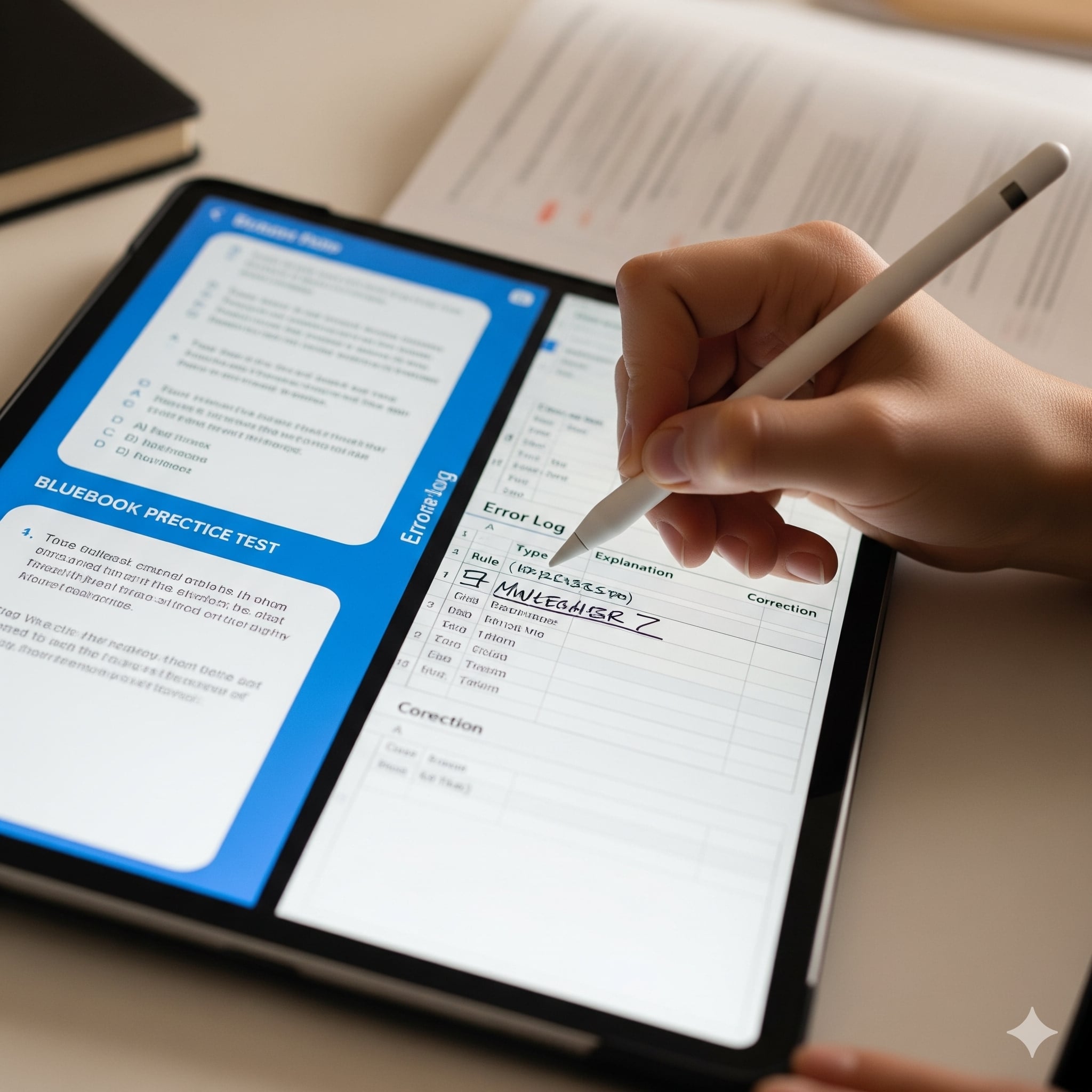
Common Pitfalls and How to Avoid Them
- Pitfall: Saving dozens of files without structure. Fix: Start with the template above and enforce the naming convention for every upload.
- Pitfall: Logging mistakes but never revisiting them. Fix: Add a Follow-up Date column to your error log and block calendar time for it.
- Pitfall: Hoarding resources instead of using them. Fix: Keep a weekly “TOP 3” action list in 00_Index and focus only on those each week.
Putting It All Together: A Quick Start Checklist
Use this checklist to create your cloud-based SAT resource folder today:
- Create a top-level folder named “SAT_Prep_[YourName]_2025” and add the 00_Index doc.
- Make the subfolders listed in the Core Folder Structure.
- Upload one recent full-length practice test and export the Bluebook results into 01_Practice_Tests.
- Open a new error log spreadsheet and enter the last test’s mistakes.
- Set a weekly recurring calendar event to update 00_Index and review the error log.
- Share view/comment access with your tutor or counselor, and add action items into the Index before sessions.
Final Thoughts: Less Chaos, More Focus
Creating a cloud-based SAT resource folder is more than digital housekeeping—it’s a study strategy. When your materials live in one organized, searchable place, you spend less time hunting for resources and more time improving. Over a few weeks, you’ll notice a calmer study routine and clearer progress. The folder becomes a mirror of your learning: every logged mistake, reviewed explanation, and tutor note shows growth.
And if you work with a tutor who provides tailored study plans and one-on-one guidance, that partnership fits neatly into the folder system—turning feedback into action items and turning practice into measurable progress. Start small, keep it tidy, and let your cloud folder carry your prep forward.
Ready to build yours? Open a new folder, paste the template structure into your Index, and schedule your first review session for this weekend. You’ll thank yourself later.
























No Comments
Leave a comment Cancel